
Appearance
Creating Campaigns
Learn how to set up effective marketing campaigns that engage your customers.
Creating a New Campaign
- Navigate to Marketing > Campaigns
- Click the New Campaign button
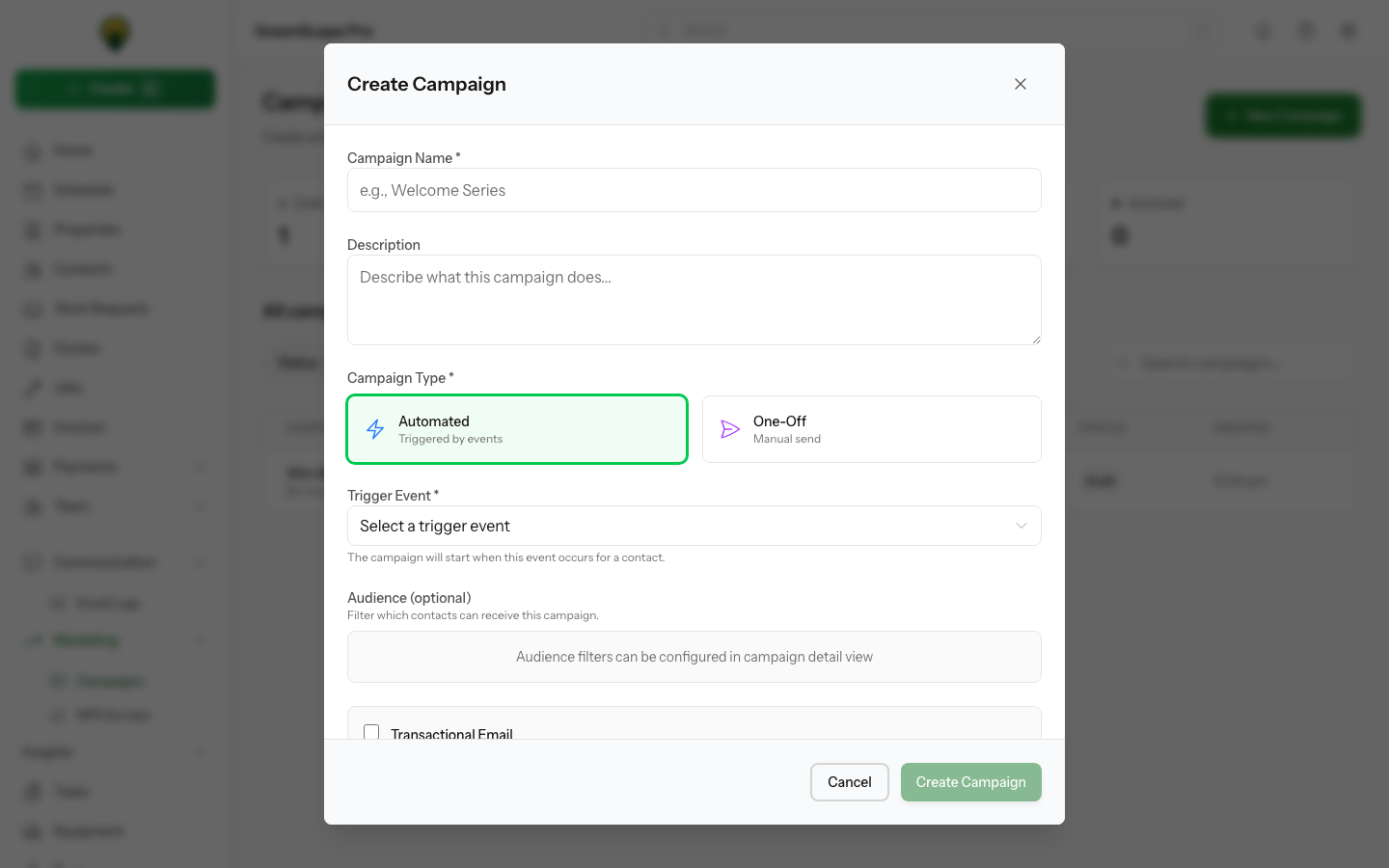
- Fill in the campaign details:
| Field | Description | Required |
|---|---|---|
| Name | Internal name for the campaign | Yes |
| Description | Notes about the campaign purpose | No |
| Type | Automated (trigger-based) or One-Off (manual) | Yes |
- Click Create Campaign
Click to enlarge
Click to enlarge
Automated Campaign Setup
For automated campaigns, you'll also configure a trigger:
Available Triggers
| Trigger | When It Fires |
|---|---|
| Contact Created | New contact added to your database |
| Job Completed | A job is marked as complete |
| Quote Sent | A quote is sent to a customer |
| Quote Expired | A quote passes its expiry date |
| Invoice Paid | Payment received on an invoice |
| Subscription Started | Customer starts a recurring service |
| Subscription Cancelled | Customer cancels a recurring service |
Example: Post-Job Follow-Up
Create an automated campaign that sends a review request after completing work:
- Name: Post-Job Review Request
- Type: Automated
- Trigger: Job Completed
- Steps:
- Step 1: Email 2 days after - "How did we do?"
- Step 2: SMS 5 days after - Review reminder with portal link
One-Off Campaign Setup
One-off campaigns don't require triggers. Instead, you'll select recipients when you're ready to send.
Example: Spring Service Reminder
- Name: Spring 2025 Service Reminder
- Type: One-Off
- Steps:
- Step 1: Email immediately - "Time for your spring service"
After Creating
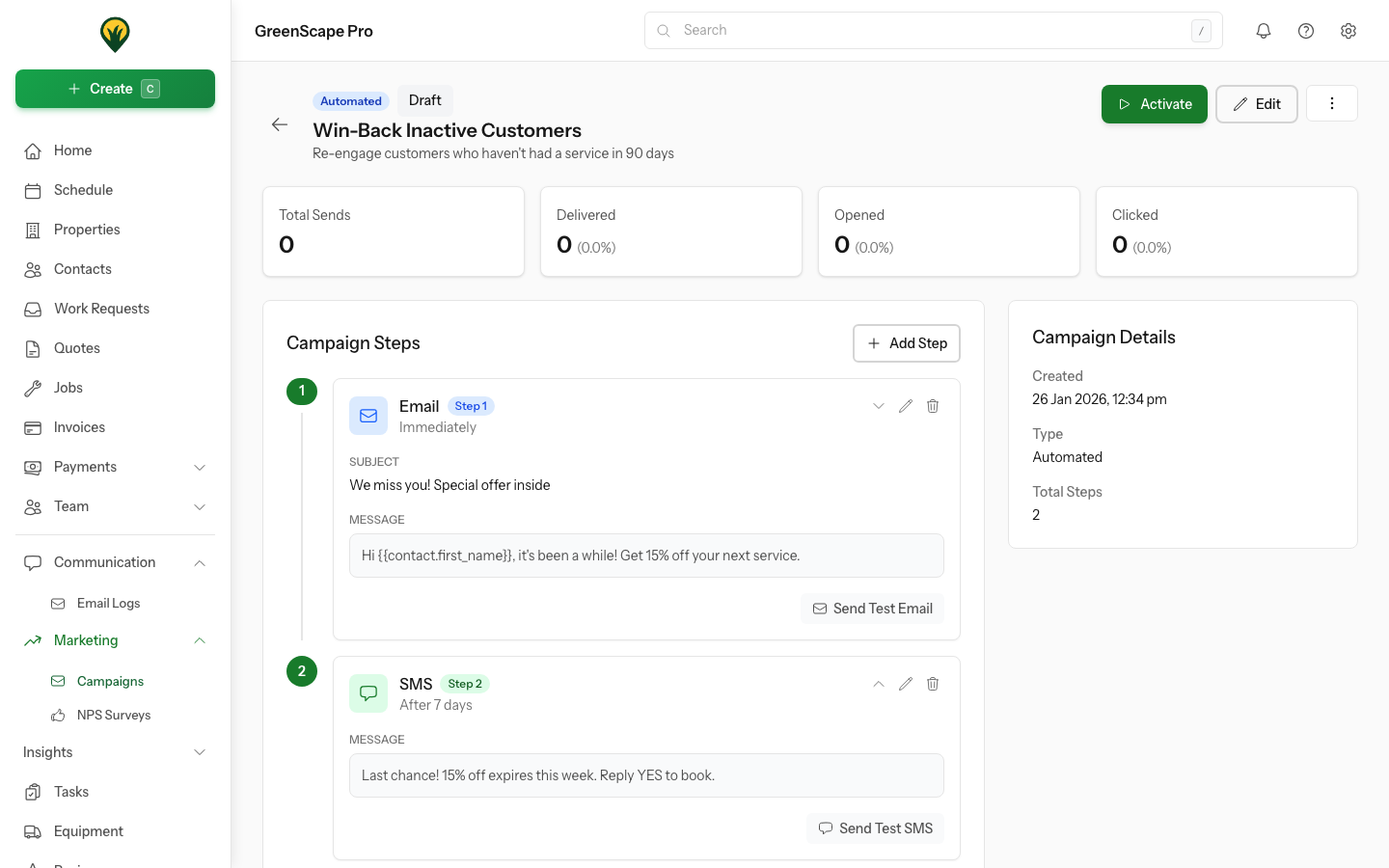
Once your campaign is created, you'll be taken to the campaign detail page where you can:
- Add steps - Configure email and SMS messages
- Reorder steps - Drag steps to change sequence
- Test messages - Preview what customers will receive
- Activate - Start sending to real customers
Add Steps Before Activating
A campaign requires at least one step before it can be activated. The Activate button will be disabled until you add at least one email or SMS step.
Campaign Actions
Edit Campaign
Click Edit to change the campaign name, description, or trigger configuration.
Duplicate Campaign
Click the ... menu and select Duplicate to create a copy of the campaign. Useful for creating variations or seasonal updates.
Archive Campaign
Click the ... menu and select Archive to permanently stop a campaign. Archived campaigns are kept for historical reporting but cannot be reactivated.
Best Practices
Keep it focused - Each campaign should have a clear goal (welcome, review request, re-engagement)
Space out messages - Give customers time to respond before sending follow-ups
Test before activating - Always send test messages to yourself first
Monitor performance - Check open and click rates to see what's working
Start simple - Begin with 2-3 steps and add more based on results