
Appearance
Creating Jobs
Jobs can be created from approved quotes or manually for new work.
From a Quote
The easiest way to create a job is from an approved quote:
- Open the approved quote
- Click Convert to Job
- Review and confirm
See Converting Quotes to Jobs for details.
Creating Manually
To create a job without a quote:
- Click + New Job in the sidebar
- Select a client
- Select or add a property
- Add job details:
- Job title/description
- Line items (services to be performed)
- Priority level
- Special instructions
- Click Create Job
Job Details
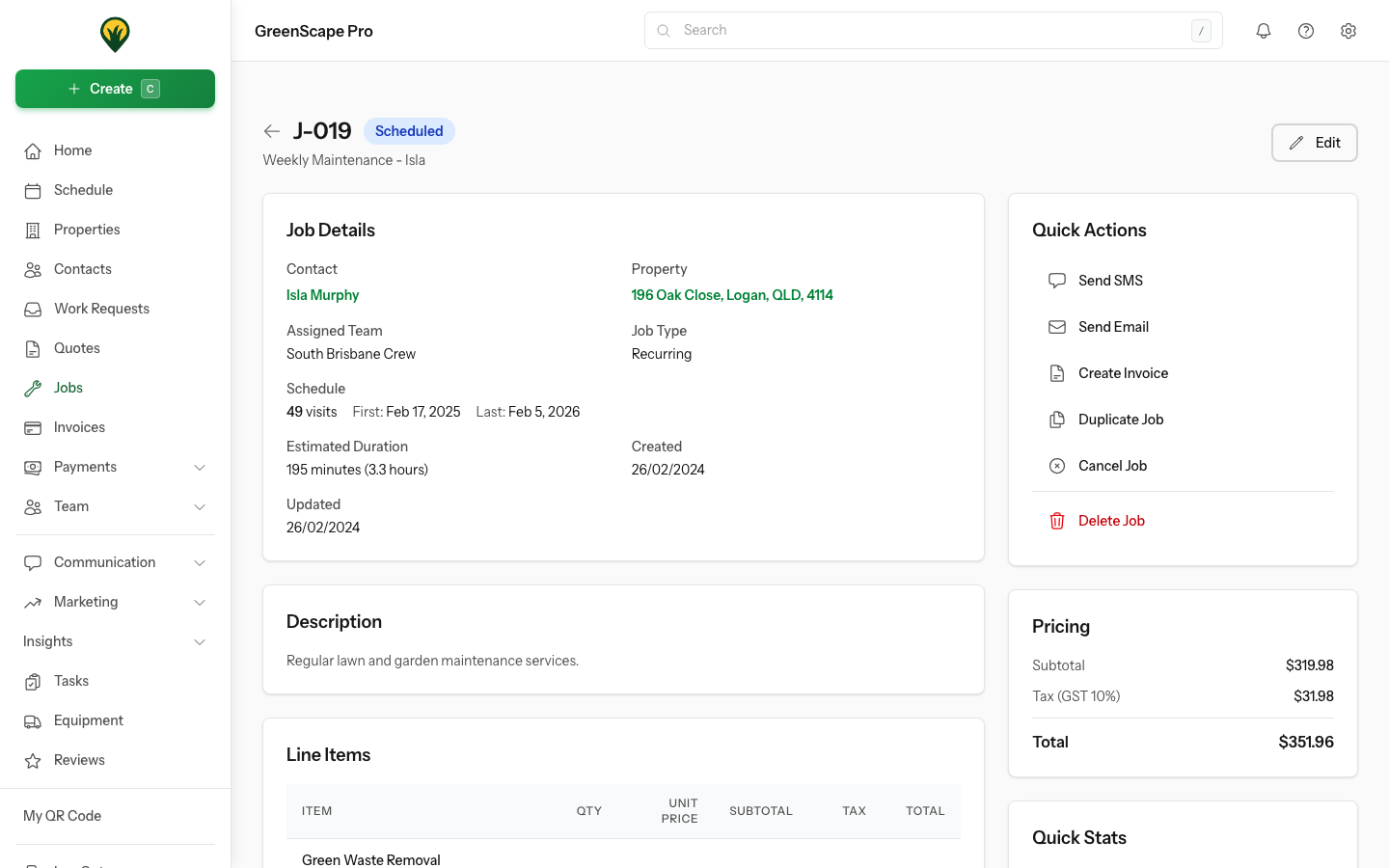
Click to enlarge
Title & Description
Give your job a clear title that identifies the work:
- ✅ "Spring Garden Cleanup - 123 Main St"
- ✅ "Weekly Lawn Care"
- ❌ "Job 1"
Line Items
Add the services included in this job. These can come from:
- Your service catalog
- Custom entries
- A template
Instructions
Add notes for your crew:
- Access instructions (gate code, key location)
- Client preferences
- Safety considerations
- Equipment needed
Checklists
Add a checklist to ensure consistent work quality:
- Click Load Template in the Checklist section
- Select a template (e.g., "Standard Lawn Service")
- Items are added to the job
- Add custom items if needed for this specific job
Your crew will tick off items as they complete them on each visit. See Checklists for more details.
Job Status
When you first create a job, it starts as a Draft. This lets you set up all the details before scheduling.
Automatic Status Update
When you add visits to a draft job, it automatically changes to Scheduled. You don't need to manually update the status.
Draft Job → Add Visits → Scheduled JobThis ensures your schedule always reflects jobs that have actual visits planned.
Next Steps
After creating a job: