
Appearance
Creating Quotes
This guide walks you through creating a quote from scratch.
Quick Steps
- Click + New Quote from the sidebar
- Select or create a client
- Add line items for services
- Review totals
- Save as draft or send
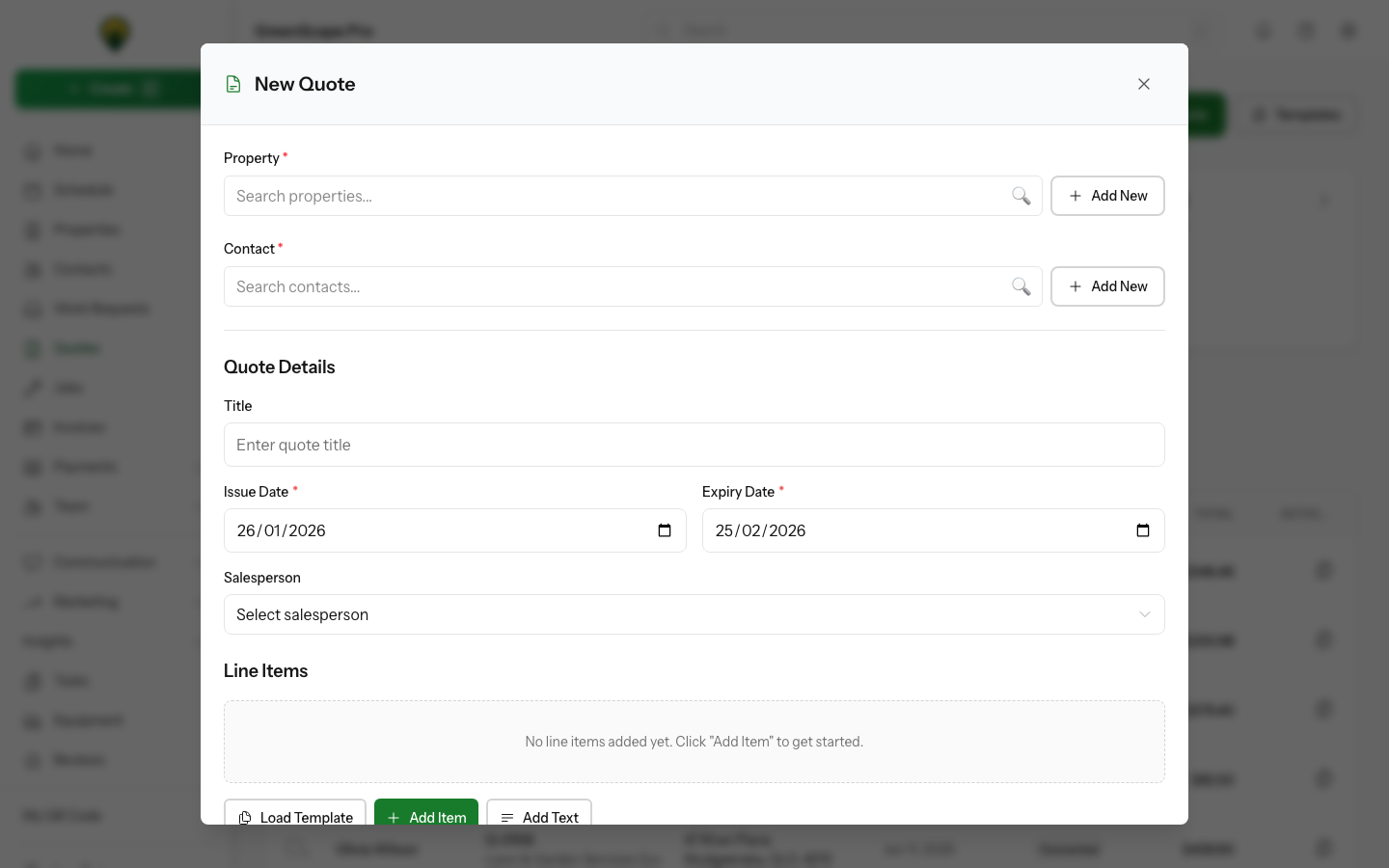
Click to enlarge
Step-by-Step Guide
1. Start a New Quote
From anywhere in YardPilot:
- Click + New Quote in the sidebar, or
- Go to Quotes → New Quote
2. Select a Client
Search for an existing client by name, email, or phone. If the client doesn't exist:
- Click + New Client
- Enter their details
- The new client is automatically selected
TIP
You can also start a quote from a client's profile page - click Create Quote and the client is pre-selected.
3. Select a Property
If the client has multiple properties, select which property this quote is for. Or add a new property if needed.
4. Add Line Items
Click Add Item to add services to your quote.
| Field | Description |
|---|---|
| Service/Description | What you're quoting for |
| Quantity | Number of units |
| Unit | How it's measured (each, hour, sqm, etc.) |
| Unit Price | Price per unit |
Adding from Catalog
If you have a service catalog set up:
- Click Add from Catalog
- Search or browse services
- Click to add - pricing is pre-filled
Custom Line Items
For one-off items, simply type the description and price directly.
Multiple Lines
Add as many line items as needed. Each appears as a separate row on the quote.
5. Add Optional Details
Internal Notes
Notes only visible to your team - not shown to the client.
Quote Notes
Notes shown on the quote, above the line items. Use for scope explanations.
Terms & Conditions
Shown at the bottom of the quote. Your default terms are pre-filled from Settings.
6. Set Quote Options
Valid Until
How long the quote is valid. After this date, the quote expires automatically.
Quote Number
Auto-generated based on your settings, but can be edited if needed.
7. Review & Save
Before saving, review:
- Client and property details
- All line items and prices
- Subtotal, GST, and total
- Validity date
Click Save Draft to save without sending, or Save & Send to email immediately.
GST Handling
By default, the GST Included in Prices checkbox is enabled, meaning prices you enter include GST. YardPilot automatically calculates and displays the GST-exclusive subtotal and GST amount separately.
If you prefer to enter prices excluding GST and have GST added on top, uncheck the GST Included in Prices option in the line items section.
Not GST registered?
If your business isn't registered for GST, disable GST in Settings → Company → Tax Settings. This ensures no GST is calculated on quotes and invoices.
After Creating
Once saved, you can:
- Send to the client
- Edit the quote (while still in Draft)
- Duplicate to create a similar quote
- Delete if no longer needed
Adding Video Descriptions
Attach videos to your quotes to explain services, show examples, or provide context to clients.
How to Add Videos
- Open a saved quote
- Scroll to the Videos section (below line items)
- Choose how to add:
- Upload - Upload a video file (up to 2GB)
- Link - Paste a YouTube or Vimeo URL
- Add an optional caption
- Toggle Visible to customer to show in the client portal
Use Cases
- Walkthrough videos - Explain what work is included
- Before/after examples - Show quality of past work
- Process explanations - Help clients understand the service
- Site assessment videos - Document current property condition
Videos marked as visible appear on the quote in the client portal, giving clients more context when making their decision.
Tips for Better Quotes
- Be specific - Detailed descriptions reduce client questions
- Break down large jobs - Show each component separately
- Include exclusions - State what's NOT included to set expectations
- Set realistic validity - 14-30 days is typical for most services
- Use templates - For repeat services, create templates to save time
Next Steps
Ready to send? See Sending to Clients.