
Appearance
Automations
Save time and improve client experience by automating routine communications and notifications.
What Are Automations?
Automations are rules that automatically send emails or SMS messages when certain events happen in your business. Instead of manually sending appointment reminders or follow-up emails, YardPilot handles it for you.
How Automations Work
Each automation has three parts:
- Trigger - The event that starts the automation (e.g., "Quote is approved")
- Timing - When the action happens (instantly, before, or after the event)
- Action - What happens (e.g., "Send email to customer")
Example
Visit Reminder automation:
- Trigger: Upcoming visit
- Timing: 1 day before
- Action: Send reminder email to customer
This means your customers automatically get a friendly reminder the day before their scheduled visit.
Types of Automations
YardPilot includes 63 pre-configured automations across 14 categories:
| Category | Examples |
|---|---|
| Visits | Reminders, on-my-way notifications, completion notices, rescheduling alerts |
| Quotes | Sent notifications, approval confirmations, expiry reminders, decline alerts |
| Jobs | Creation notices, scheduling confirmations, completion notifications |
| Invoicing | Invoice sent, payment receipts, overdue reminders |
| Work Requests | Confirmation emails, internal alerts, conversion notices |
| Reviews | Review requests, thank-you messages, negative review alerts |
| NPS Surveys | Survey requests, promoter thank-yous, detractor follow-ups |
| Meetings | Scheduling confirmations, reminders, cancellation notices |
| Properties | New property alerts, service due reminders |
| Contacts | Welcome emails, birthday messages, inactivity alerts |
| Expenses | Submission alerts, approval notifications, reimbursement confirmations |
| Timesheets | Submission alerts, approval notifications, overtime warnings |
| Scheduling | Conflict alerts, unassigned visit notifications |
| Inventory | Low stock alerts, reorder notifications |
Click to enlarge
In This Section
- Built-in Rules - Pre-configured automations ready to use
- Creating Custom Rules - Create your own automation rules
- Notification Preferences - Control which contacts receive notifications
Quick Start
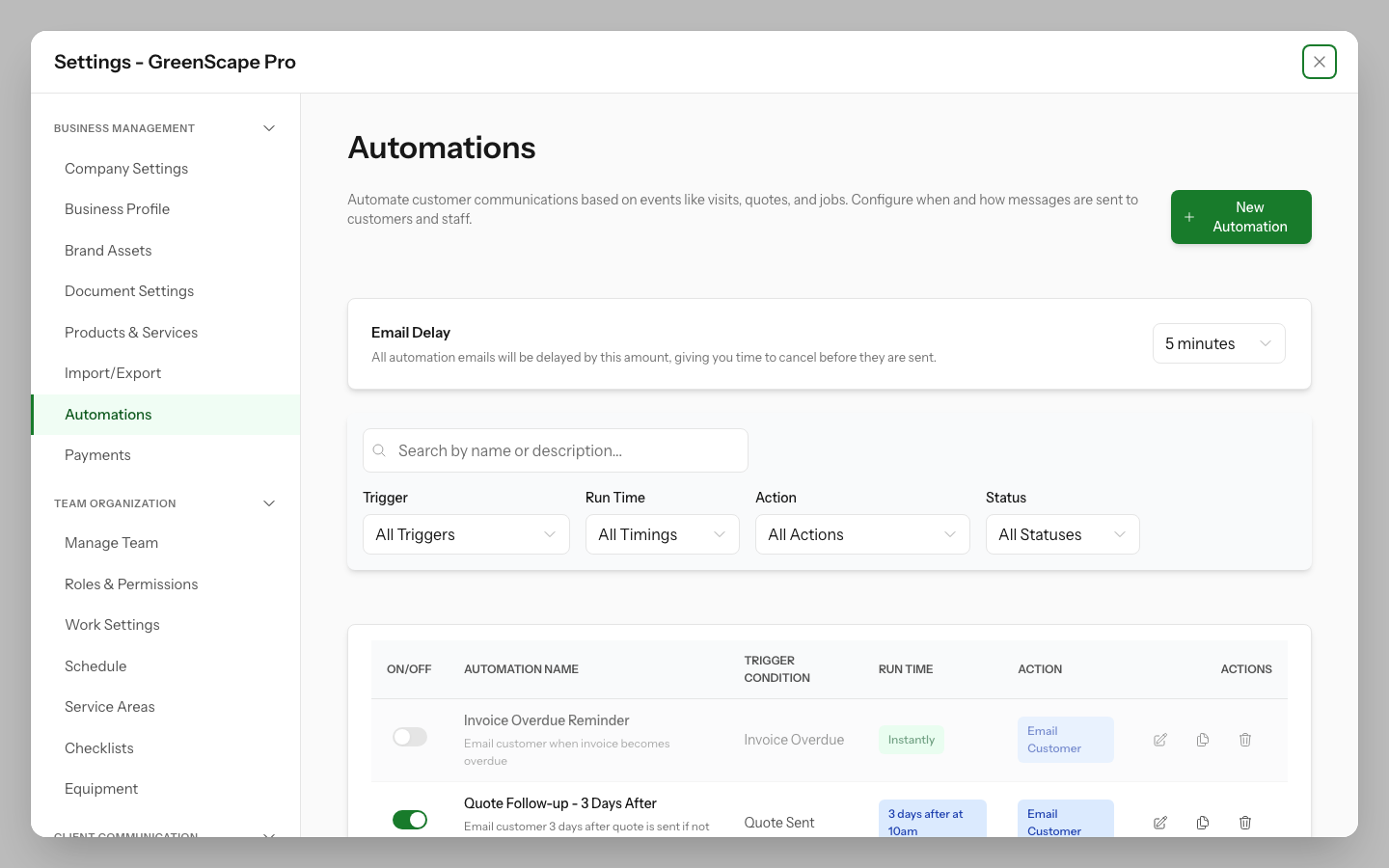
- Go to Settings > Automations
- Review the list of available automations
- Toggle ON for automations you want to enable
- Automations start working immediately
Default Automations
YardPilot comes with sensible defaults enabled. We recommend reviewing them and adjusting to match your business style.
Email Delay Setting
Automation emails are not sent immediately — they're scheduled with a delay so you can review and cancel them before they're delivered.
Configuring the Delay
- Go to Settings > Automations
- Find Email Delay at the top of the page
- Choose a delay period:
- 5 minutes — Quick delivery with minimal review time
- 10 minutes — Balanced approach (default)
- 15 minutes — More time to catch issues
- 30 minutes — Extended review window
- 1 hour — Maximum review time
How It Works
When an automation triggers an email:
- The email appears in Email Logs with "Scheduled" status
- The log shows when the email will be sent
- You can cancel the email during the delay period
- After the delay, the email is sent automatically
Viewing Scheduled Emails
Go to Communication > Email Logs and filter by Status: Scheduled to see all pending automation emails. Click any email to view details or cancel it.
Why Use a Delay?
The delay gives you a safety net. If an automation triggers incorrectly (e.g., wrong recipient, outdated information), you can catch and cancel it before it reaches the customer.
System vs Custom Rules
System rules are pre-built automations provided by YardPilot. You can enable or disable them, but to modify timing or messaging, you'll create a custom copy.
Custom rules are rules you create specifically for your business. You have full control over triggers, timing, and templates.
Feature Roadmap
YardPilot automations are continuously being enhanced. Here's the current status:
✅ Available Now
| Category | Features |
|---|---|
| Core Engine | Automation rules, timing calculations, scheduling |
| Visit Automations | Reminders, on-my-way, completion notices, rescheduling |
| Quote Automations | Sent notifications, approvals, expiry reminders |
| Job Automations | Creation, scheduling, completion notifications |
| Invoice Automations | Invoice sent, payment receipts, overdue reminders |
| Work Request Automations | Confirmations, internal alerts, conversion notices |
| Review Automations | Review requests, thank-you messages, negative alerts |
| Custom Rules | Create your own automation rules |
| Template Integration | Email and SMS templates with merge fields |
| Email Delay & Cancellation | Configurable send delay, cancel before delivery |
Meeting, contact, timesheet, and expense rules are in the built-in list. Expense rules only matter once the Expenses screen ships. There is no separate automation analytics page.