
Appearance
Email Logs
YardPilot keeps a complete record of every email sent from your account, including scheduled automation emails. View delivery status, see when emails are opened, cancel scheduled emails before they're sent, and resend messages when needed.
Accessing Email Logs
- Click Communication in the sidebar
- Select Email Logs from the menu
You'll see a list of all emails sent from your YardPilot account.
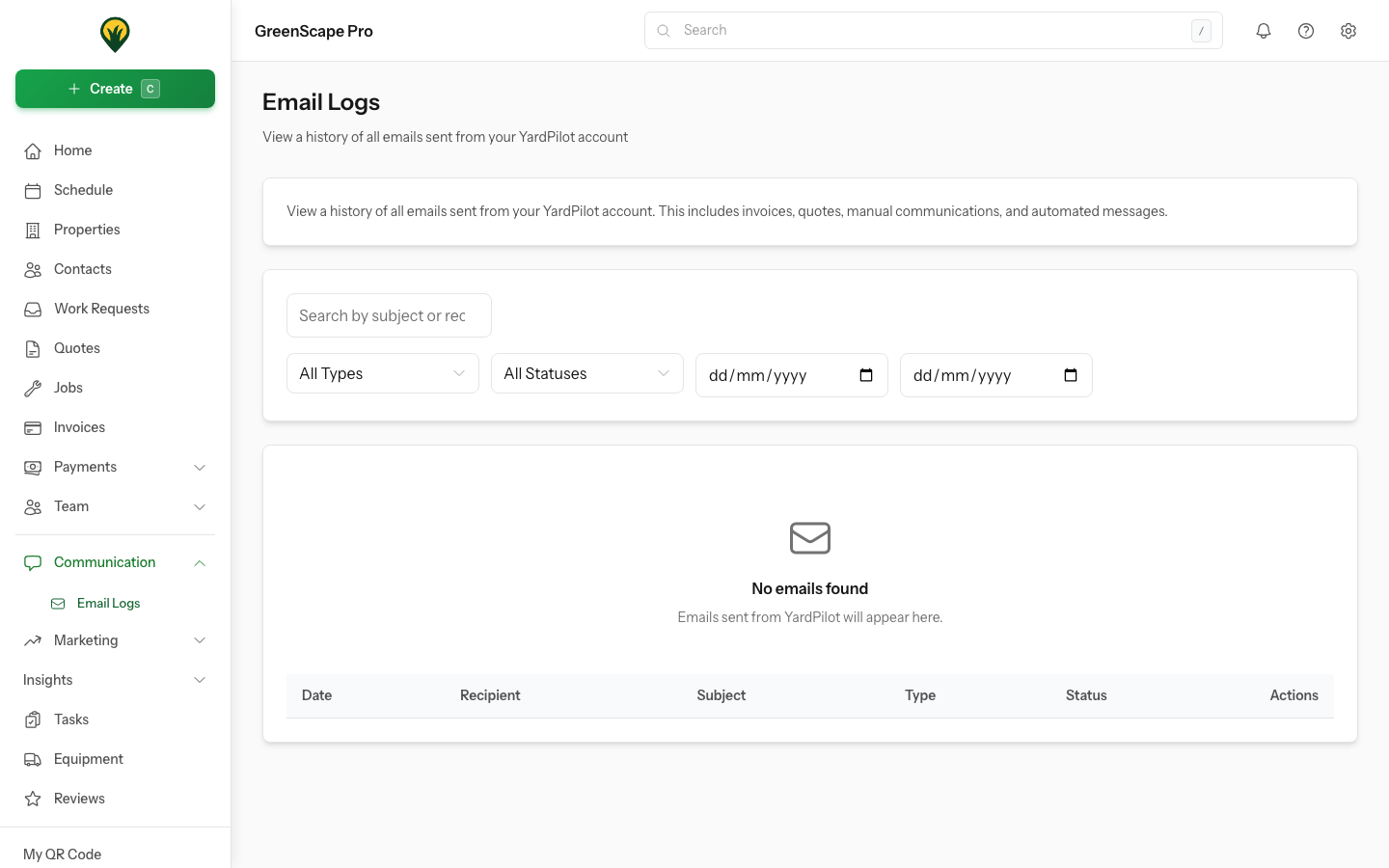
Click to enlarge
What's Tracked
Each email log shows:
| Field | Description |
|---|---|
| Subject | The email subject line |
| Recipient | Email address(es) that received the message |
| Type | Invoice, Quote, Communication, Automation, etc. |
| Status | Scheduled, Sent, Delivered, Opened, Bounced, Cancelled |
| Sent/Scheduled | Date and time the email was sent (or scheduled to be sent) |
| Opens | Number of times the email was opened |
Email Statuses
| Status | Meaning |
|---|---|
| Scheduled | Automation email is queued to be sent at a set time |
| Sent | Email has left YardPilot's servers |
| Delivered | Email was accepted by recipient's mail server |
| Opened | Recipient opened the email |
| Bounced | Email could not be delivered |
| Cancelled | Scheduled email was cancelled before sending |
Open Tracking
Open tracking uses a tiny invisible image. It works in most email clients, but some (like Apple Mail with Privacy Protection) may block it or show false opens.
Filtering Emails
Use filters to find specific emails:
- Search — Find by subject or recipient address
- Type — Filter by invoice, quote, automation, etc.
- Status — Show scheduled, opened, bounced, cancelled, etc.
- Date Range — Select start and end dates
Click Clear All to reset filters.
View Scheduled Emails
Filter by Status: Scheduled to see all automation emails waiting to be sent. This helps you review and cancel emails before they're delivered.
Filtering by Contact
When viewing a contact's profile, click View Emails to see only emails sent to that person.
Email Types
| Type | Source |
|---|---|
| Invoice | Invoice emails and payment receipts |
| Quote | Quote emails and follow-ups |
| Communication | Manual emails to contacts |
| Automation | Triggered by automations |
| Magic Link | Portal login links |
| System | Account notifications |
Scheduled Emails
Automation emails are not sent immediately — they're scheduled with a configurable delay. This gives you time to review and cancel them before they're delivered.
How Scheduling Works
- An automation is triggered (e.g., visit completed)
- YardPilot creates an email log with Scheduled status
- The email waits for the configured delay period
- After the delay, the email is sent automatically
The email log shows "Scheduled for" instead of "Sent" until the email is actually delivered.
Configuring the Delay
Set the minimum delay for automation emails:
- Go to Settings > Automations
- Find Email Delay at the top
- Choose a delay: 5 minutes, 10 minutes, 15 minutes, 30 minutes, or 1 hour
Recommended Settings
We recommend at least 5 minutes delay. This gives you time to catch and cancel any automation emails that shouldn't be sent.
Cancelling Scheduled Emails
To cancel an email before it's sent:
- Go to Communication > Email Logs
- Filter by Status: Scheduled to see pending emails
- Click the email you want to cancel
- Click Cancel Email
- Optionally enter a reason for cancellation
- Click Cancel Email to confirm
The email status changes to Cancelled and won't be sent.
What Gets Cancelled Together
When you cancel a scheduled email, the linked scheduled automation is also cancelled. Similarly, if the scheduled automation is cancelled elsewhere, the email log updates automatically.
Who Can Cancel
| Role | Can Cancel? |
|---|---|
| Owner | ✅ Yes |
| Admin | ✅ Yes |
| Office | ✅ Yes |
| Field | ❌ No |
Viewing Cancelled Emails
Cancelled emails remain in the log with:
- Cancelled status
- Cancellation date and time
- Who cancelled it
- Reason for cancellation (if provided)
Filter by Status: Cancelled to see all cancelled emails.
Viewing Email Details
Click any email to see:
- Full subject and recipients
- Date and time sent (or scheduled for)
- Delivery status with timestamps
- Open count and first open time
- Linked invoice, quote, or job
- Email preview (if available)
- Cancellation details (for cancelled emails)
Resending Emails
To resend an email:
- Click the email to open details
- Click Resend
- Confirm the resend
The new email is logged separately and linked to the original.
Emails That Cannot Be Resent
Some emails cannot be resent for security:
- Magic links — Contain one-time login tokens
- Password resets — Security-sensitive
- Payment receipts — Transaction-specific
- System emails — Account notifications
For these, send a fresh email from the relevant screen instead.
Expired Content
Email content is stored for a limited time to manage database size:
- HTML content — 30 days (configurable)
- Email metadata — 90 days (configurable)
- Sensitive emails — 7 days
After content expires, you can still see the email log but cannot resend or preview it.
Open Tracking Details
When a recipient opens an email:
- First open — Status changes to "Opened", timestamp recorded
- Subsequent opens — Open count increments
Automatic Quote & Invoice Status Updates
When a client opens a quote or invoice email for the first time, YardPilot automatically updates the document status:
| Document Type | Status Change | What Happens |
|---|---|---|
| Quote | Sent → Viewed | Quote status updates, viewed_at timestamp set |
| Invoice | Sent → Viewed | Invoice status updates, viewed_at timestamp set |
This means you can:
- Filter quotes/invoices by "Viewed" status to see who has opened them
- Know exactly when a client first saw their quote or invoice
- Follow up more effectively on documents that haven't been viewed
TIP
The status only updates on the first open. Subsequent opens increment the open count but don't change the document status.
Limitations
Open tracking may not work when:
- Recipient has image loading disabled
- Apple Mail Privacy Protection is enabled
- Corporate firewalls block tracking images
- Email is opened in some web-based clients
Consider open tracking as an indicator, not an absolute measure.
Bounced Emails
A bounce means the email couldn't be delivered. Common reasons:
| Bounce Type | Cause | Action |
|---|---|---|
| Invalid address | Email doesn't exist | Update contact's email |
| Mailbox full | Recipient's inbox is full | Try again later |
| Rejected | Server blocked the email | Check if contact marked you as spam |
Review bounced emails regularly and update contact records.
Email Retention
Emails are automatically cleaned up based on retention settings:
| Content | Default Retention |
|---|---|
| Email metadata | 90 days |
| HTML content | 30 days |
| Sensitive emails | 7 days |
Contact support to adjust retention periods for your account.
Privacy Considerations
- Email logs are visible to Owners and Admins only
- Field users cannot access email logs
- Sensitive emails (magic links, passwords) don't store the email body
- Logs are scoped to your company — you cannot see other tenants' emails
Common Questions
Why does an email show as "Sent" but not "Delivered"?
The email left our servers but hasn't been confirmed by the recipient's mail server yet. This usually updates within minutes, but some servers don't send delivery confirmations.
Can customers see if I viewed their email?
No. Email tracking only works for emails you send. You can't track if customers open your email replies.
Why did open count increase by more than one?
Each time the email is opened (or images are loaded), the count increases. This includes:
- Multiple views by the recipient
- Email forwarded to others
- Email preview in some clients
- Anti-virus scanners opening links
How do I stop tracking for certain contacts?
Currently, tracking applies to all emails. Contact support if you need to exclude specific recipients.
How do I cancel a scheduled email?
Find the email in the logs (filter by Status: Scheduled), click it to open details, then click Cancel Email. See Cancelling Scheduled Emails for details.
Why can't I cancel an email?
Emails can only be cancelled while they're in Scheduled status. Once an email is sent, it cannot be cancelled. Also, Field users don't have permission to cancel emails.
How long do I have to cancel a scheduled email?
That depends on your email delay setting. Go to Settings > Automations to see or change your delay. The minimum is 5 minutes, and you can set it up to 1 hour.
Why didn't my automation email appear in the logs?
If an automation is configured to send instantly (no delay), the email may be sent and logged very quickly. Check if the email shows as "Sent" instead of "Scheduled". Also ensure the automation rule is enabled.