
Appearance
Adding Team Members
Invite your team so they can access schedules, complete visits, and more.
Inviting a Team Member
- Go to Settings → Manage Team
- Click + Invite Member
- Enter their email address
- Select their role
- Click Send Invite
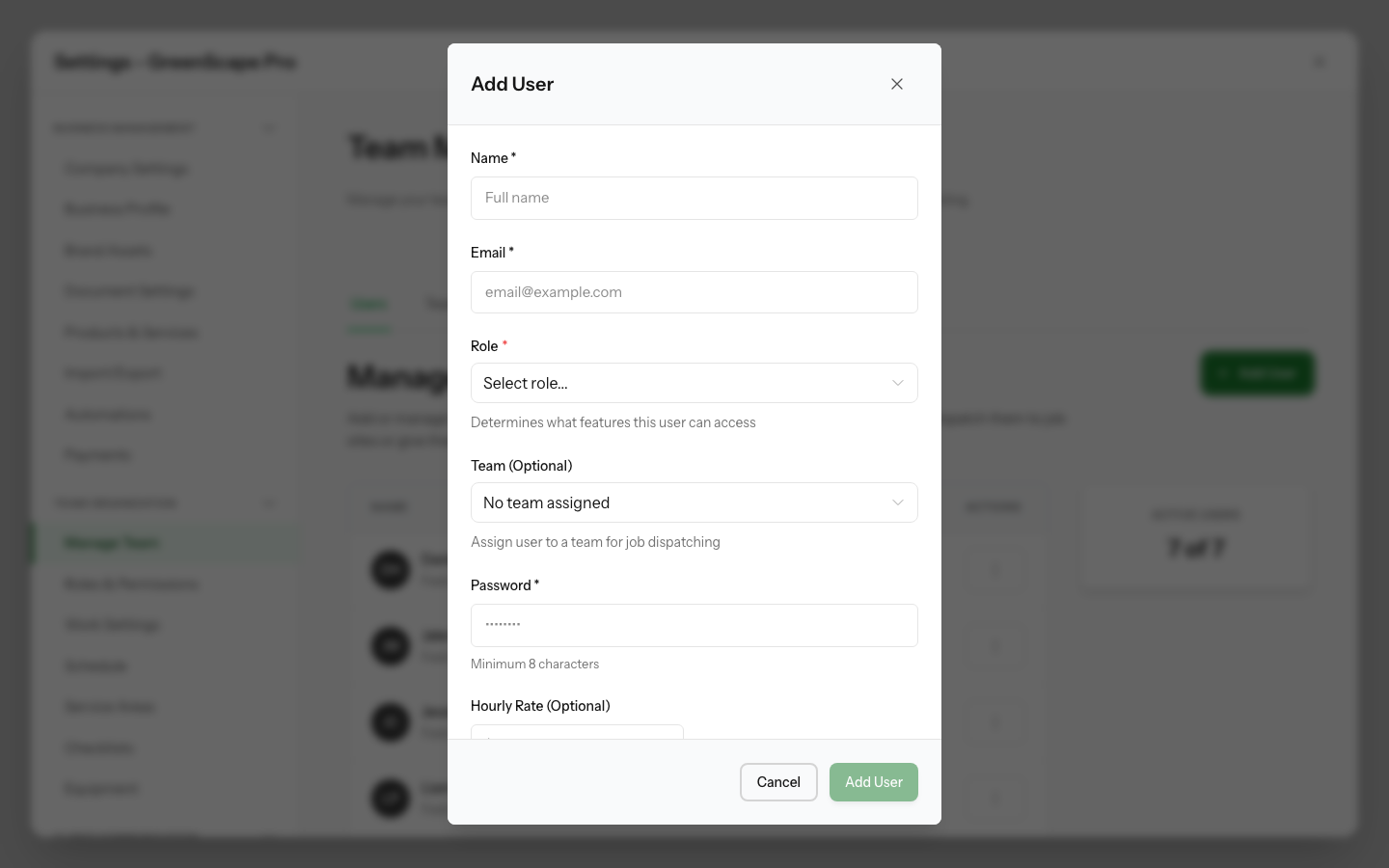
Click to enlarge
Invitation Process
- Team member receives an email invitation
- They click the link to accept
- They create their password
- They can now log in
TIP
Invitations expire after 7 days. Resend if needed.
Setting Permissions
When inviting, choose their role:
- Admin - Full access, manage team
- Office - Quotes, jobs, clients, scheduling
- Field - View assigned work, complete visits
See Roles & Permissions for details.
Managing Team Members
Edit a Member
- Go to Settings → Manage Team
- Click on the team member
- Update their details or role
- Save
Remove a Member
- Go to Settings → Manage Team
- Click on the team member
- Click Remove from Team
- Confirm
WARNING
Removing a team member revokes their access immediately. Their historical data (completed visits, etc.) is preserved.