
Appearance
Scheduling Visits
Visits are the scheduled times when your crew performs the work.
Adding a Visit
- Open the job
- Click Schedule Visit
- Select date and time
- Set estimated duration
- Save
Scheduling Options
One-Time Visit
For jobs that need a single visit:
- Select the date
- Set start time
- Set estimated duration
Multiple Visits
For jobs requiring several days:
- Schedule the first visit
- Click Add Another Visit
- Repeat as needed
Recurring Schedule
For ongoing maintenance:
- Click Set Up Recurring
- Choose frequency (daily, weekly, fortnightly, monthly)
- Select preferred day(s)
- For monthly schedules, choose either:
- A specific day of the month (e.g., the 15th)
- A relative day (e.g., first Wednesday, last Friday)
- Set duration (ongoing or end date)
Monthly Scheduling Options
When scheduling monthly recurring jobs, you have two options:
- Day of month: Schedule on a specific date (e.g., the 1st, 15th, or last day)
- Relative day: Schedule on a specific weekday occurrence:
- First, second, third, or fourth occurrence (e.g., "first Monday")
- Last occurrence (e.g., "last Friday of the month")
This is useful for jobs that need to occur on consistent days regardless of the date, such as "every first Wednesday" for monthly maintenance rounds.
How Visits Are Generated
For recurring jobs, YardPilot automatically generates upcoming visits to help you plan ahead. The number of visits generated depends on the frequency:
| Frequency | Visits Generated | Planning Horizon |
|---|---|---|
| Daily | 12 visits | ~2 weeks ahead |
| Weekly | 8 visits | ~2 months ahead |
| Fortnightly | 6 visits | ~3 months ahead |
| Monthly | 3 visits | ~3 months ahead |
As visits are completed, new visits are automatically generated to maintain this planning window. This gives you and your clients enough visibility for scheduling without overwhelming the calendar with dates far in the future.
TIP
For indefinite recurring jobs (no end date), visits are automatically replenished as they are completed. You don't need to manually add new visits.
Calendar View
View all scheduled visits in the calendar:
- Day view - Detailed daily schedule
- Week view - Weekly overview
- Month view - Monthly planning
Drag and drop visits to reschedule.
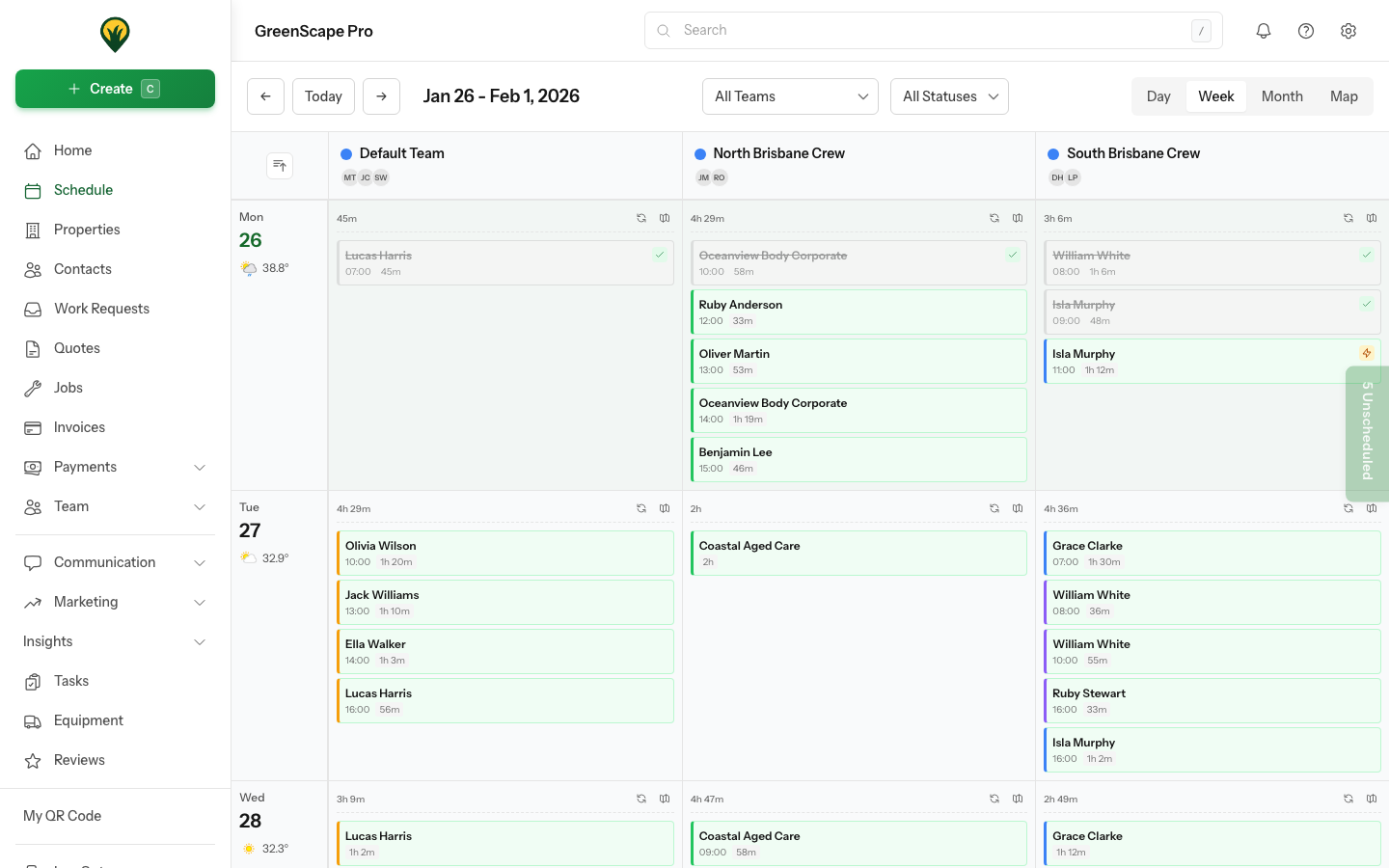
Click to enlarge
Route Optimization
Optimize your crew's daily route to minimize travel time and fuel costs.
How to Optimize
- Go to Schedule and select a day
- Click the Optimize Route button in the toolbar
- Configure your settings:
- Start Location - Where the crew begins (depot, first job, or custom address)
- End Location - Where the crew finishes (depot, last job, or custom address)
- Departure Time - When the crew leaves the start location
- Click Optimize
- Review the suggested order and estimated travel times
- Click Apply to reorder your visits
What Gets Optimized
The optimizer calculates the most efficient sequence considering:
- Distance between properties
- Travel time based on road conditions
- Service duration at each property
Optimization Results
After optimization, you'll see:
- New visit order - Drag to fine-tune if needed
- Estimated arrival times - When crews should reach each property
- Total travel time - Combined driving time for the day
- Total distance - Kilometres to be driven
Tips
- Optimize after all visits are scheduled for the day
- Re-optimize if you add or remove visits
- Works best with 2+ visits on the same day
- Properties must have valid addresses for accurate results
Printing the Daily Schedule
Print a clean A4 PDF of your daily schedule to take on the road. Perfect for quick reference when driving between jobs or when you need a paper backup.
How to Print
- Go to Schedule and select the day you want to print
- Click the Print button in the toolbar
- A new tab opens with the PDF
- Use your browser's print dialog or save as PDF
The print button is available on both desktop and mobile views.
What's Included
The printed schedule contains everything your crew needs for the day:
| Section | Details |
|---|---|
| Header | Company logo, date, and team name |
| Summary Bar | Total visits, work time, travel time, and estimated daily value |
| Visit List | Each visit in route order with: |
| • Customer name and phone number | |
| • Property address | |
| • Job description and line items | |
| • Checklist items (if any) | |
| • Estimated duration | |
| • Travel time to next stop | |
| Notes Section | Blank space at the bottom for handwritten notes |
Filtering by Team
If you have multiple crews, the printed schedule only shows visits for the currently selected team filter. This lets you print separate run sheets for each crew.
TIP
For best results, run Route Optimization before printing so visits are listed in the most efficient travel order.
Real-Time ETAs
YardPilot calculates and displays estimated arrival times (ETAs) for each visit on your daily schedule. This helps your team provide accurate arrival estimates to customers.
How ETAs Work
ETAs are automatically calculated based on:
- Route order - The sequence of visits for the day
- Travel time - Driving time between properties
- Service duration - Estimated time to complete each visit
- Visit progress - Which visits are completed or in-progress
ETAs update automatically:
- Every 5 minutes throughout the workday
- When a visit is started or completed
- After route optimization is applied
ETA Status Indicators
On the day view, each visit displays its ETA with a colour-coded status:
| Colour | Status | Meaning |
|---|---|---|
| Green | On Track | ETA is at or before the scheduled time |
| Amber | At Risk | ETA is slightly behind schedule (configurable threshold) |
| Red | Late | ETA significantly exceeds scheduled time |
For visits with scheduled appointment times, the delay in minutes is also shown when running late.
Running Late Alerts
When a visit's ETA falls significantly behind its scheduled time, the system will notify your team with an alert. This gives crews early warning to contact customers about potential delays.
TIP
Configure the "at risk" threshold in your company settings to match your business tolerance for delays. The default is 15 minutes.
Using ETAs Effectively
- Customer communication - When a customer calls asking "when will you arrive?", your team can see the ETA at a glance
- Proactive updates - Contact customers before you're late, not after
- Daily planning - Review morning ETAs to identify potential scheduling issues early
- Performance tracking - Compare estimated vs actual arrival times to improve future scheduling
Rescheduling Visits
When you need to move a visit to a different date or time, YardPilot provides intelligent scheduling protection to prevent accidental data loss.
Drag-and-Drop Rescheduling
The easiest way to reschedule is by dragging visits in the calendar:
- Click and hold a visit in the calendar
- Drag to the new date/time
- Release to drop
For one-off jobs, the visit moves immediately.
For recurring jobs, a modal appears asking how to apply the change:
| Option | What Happens |
|---|---|
| This visit only | Only the dragged visit moves to the new date |
| This and all future visits | The dragged visit and all future visits shift by the same number of days |
This is useful when you need to permanently shift a recurring schedule (e.g., moving all visits from Monday to Tuesday).
How "All Future Visits" Works
When you choose to reschedule all future visits:
- YardPilot calculates the date difference (e.g., moving from Monday to Wednesday = +2 days)
- All future scheduled visits shift by that same offset
- Protected visits are skipped (see below)
- You see a summary of what changed
Protected visits that won't move:
- Completed visits
- In-progress visits
- Skipped visits
- Visits with time entries recorded
The summary shows how many visits were updated and which ones were skipped with reasons.
Moving a Single Visit
- Click on the visit in the calendar
- Select Reschedule from the actions menu
- Choose the new date and time
- Save
When you reschedule a visit:
- The visit is marked as "rescheduled" with a visual indicator
- The original scheduled date is preserved for reference
- The visit becomes protected from automatic schedule regeneration
Rescheduled Visit Indicators
Rescheduled visits display special badges in the calendar:
| Indicator | Meaning |
|---|---|
| "Rescheduled" badge | Visit was manually moved from its original pattern date |
| Original date tooltip | Hover to see when the visit was originally scheduled |
This helps your team understand which visits have been manually adjusted versus those following the regular pattern.
Protected Visits
When you edit a recurring job's schedule (e.g., changing from weekly to fortnightly), YardPilot protects certain visits from being deleted:
Protected visits include:
- Visits that have been manually rescheduled
- Visits that are in progress
- Visits that have been completed
- Visits that have been skipped (with a reason)
Unprotected visits:
- Future visits still on their original pattern date
- Cancelled visits
After editing a job schedule, you'll see a summary showing:
- How many visits were created
- How many visits were deleted
- How many visits were protected
TIP
If a protected visit conflicts with the new schedule, it will be preserved. You may need to manually adjust it if needed.
Smart Gap Detection
When you reschedule a visit, YardPilot checks if the new date creates an awkward gap or overlap with adjacent visits.
Example: You have a weekly job with visits on:
- Monday Dec 2
- Monday Dec 9
- Monday Dec 16
If you move the Dec 9 visit to Friday Dec 13, YardPilot will alert you:
"The next visit (Dec 16) is only 3 days after this rescheduled visit. Would you like to skip or move it?"
Your options:
- Skip the adjacent visit - Mark Dec 16 as skipped since service was recently performed
- Move the adjacent visit - Shift Dec 16 to maintain consistent spacing
- Keep both - Leave both visits as scheduled (for when closer visits are intentional)
This prevents the common problem of visits being too close together after rescheduling.
Detaching from Pattern
For recurring jobs, you can "detach" a single visit to create a standalone one-off job:
- Open the visit details
- Click More Actions > Detach from Pattern
- Confirm the action
This is useful when:
- A customer requests special handling for one visit
- You need different pricing for a single visit
- The visit needs to be managed separately from the recurring job
After detaching:
- A new one-off job is created containing just this visit
- The original recurring job continues with its remaining visits
- The detached visit no longer follows the job's pattern
Managing Missed Visits
When a scheduled visit passes without being completed, YardPilot automatically marks it as "missed" during the overnight processing.
Missed Visit Indicators
Missed visits appear with a red indicator in the schedule and job details. This helps you quickly identify work that was planned but not performed.
Rescheduling Missed Visits
To reschedule a missed visit:
- Open the visit details
- Click Reschedule Missed Visit
- Select a new date
- The visit returns to "scheduled" status
WARNING
Rescheduling a missed visit does NOT create an extra visit. It moves the existing missed visit to the new date. The customer receives the same number of services over the period.
Skipping Visits
Sometimes a visit shouldn't be rescheduled - it should simply be skipped:
- Open the visit details
- Click Skip Visit
- Enter a reason (e.g., "Customer on holiday", "Property access issue")
- The visit is marked as skipped
Skipped visits:
- Remain visible in the schedule history
- Include the skip reason for reference
- Are protected from automatic deletion
- Don't affect recurring visit generation
Schedule Change Summary
When you edit a recurring job's schedule, YardPilot shows a detailed summary of the changes:
| Stat | Description |
|---|---|
| Created | New visits added based on the new schedule pattern |
| Deleted | Old visits removed that no longer match the pattern |
| Protected | Visits preserved because they were rescheduled, started, or completed |
The summary also lists:
- Protected visits - Each visit that was kept, with its status
- Skipped dates - Dates where new visits weren't created because protected visits already exist nearby
This transparency helps you understand exactly how your schedule changes affect existing appointments.
Next Steps
- Assign crew members to scheduled visits