
Appearance
SMS Messaging
Send SMS messages to your clients directly from YardPilot. Use SMS for appointment reminders, job updates, and quick notifications that need immediate attention.
Click to enlarge
SMS Provider Options
YardPilot offers two ways to send SMS messages:
Native SMS App
Opens your device's native SMS app pre-filled with the message. The SMS is sent from your personal phone number.
Pros:
- No additional cost (uses your phone plan)
- Messages come from your personal/business mobile
- No credit system
Cons:
- Only works on mobile devices
- No delivery tracking in YardPilot
- Manual send required each time
YardPilot SMS
Send messages directly from YardPilot with full tracking and automation support.
Pros:
- Send from desktop or mobile
- Full delivery tracking and history
- Works with automations
- Professional sender name
- Customers can reply (with dedicated number)
Cons:
- Uses SMS credits
- Monthly subscription for dedicated numbers
Setting Up SMS
Access SMS settings from Settings → Communication → SMS.
Choosing Your Provider
- Go to Settings → Communication → SMS
- Select your preferred provider:
- Native SMS App - Opens your phone's SMS app
- YardPilot SMS - Send directly with tracking
YardPilot SMS Configuration
When using YardPilot SMS, you'll need to configure:
Sender Name
Enter your business name (up to 100 characters). Messages sent via a shared number will include "From [Your Name]: ..." at the beginning.
Enable SMS Messaging
Toggle this on to enable SMS features. When enabled, you can:
- Send SMS from contact profiles
- Use SMS in automations
- Send appointment reminders via SMS
Phone Numbers
Shared Number
By default, messages are sent from a shared YardPilot number. This is included at no extra cost.
How it works:
- Messages include your business name as a prefix
- Customers see the YardPilot number
- Replies go to a shared inbox
Dedicated Number
Get your own dedicated Australian phone number for better brand recognition.
Benefits:
- Customers see your number, not a shared one
- Direct replies to your business
- Better customer recognition and trust
- Professional appearance
Number types available:
| Type | Format | Best For |
|---|---|---|
| Mobile | 04xx xxx xxx | SMS messaging (recommended) |
| Local Geographic | 02, 03, 07, 08 | Local presence |
| Toll Free | 1800 | Enterprise |
Getting a dedicated number:
- In SMS settings, click Choose Your Number
- Select the number type (Mobile recommended for SMS)
- Optionally filter by area code or specific digits
- Click Search to see available numbers
- Select your preferred number
- Confirm the monthly subscription
Mobile Numbers Recommended
Mobile numbers (04xx) work best for SMS as they support all features and are what customers expect to receive texts from.
Releasing a dedicated number:
If you no longer need your dedicated number:
- Click Release Number in SMS settings
- Review the consequences (you may not get this number back)
- Confirm to release
Your subscription will be cancelled and you'll return to using a shared number.
SMS Conversations
When customers reply to your SMS messages, you can view and respond to the conversation directly in YardPilot.
Dedicated Number Required
Two-way SMS conversations require a dedicated phone number. With a shared number, customer replies go to a shared inbox and cannot be viewed in YardPilot.
Viewing Conversations
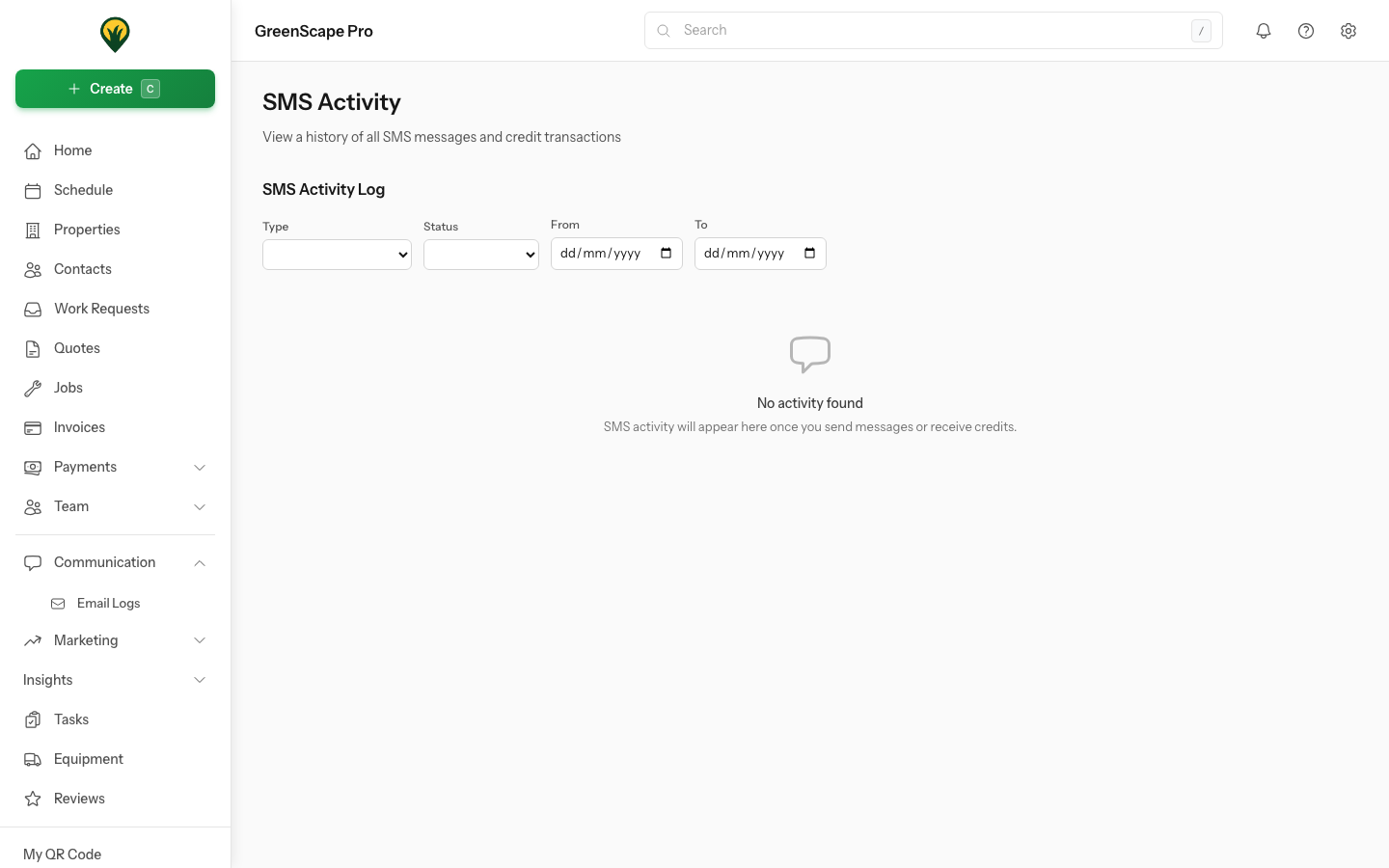
Access SMS conversations from the SMS Activity log:
- Go to Communication > SMS Activity
- Find a message thread with replies
- Click View Conversation to open the conversation view
The conversation view shows:
- Full message history - All messages between you and the customer
- Message direction - Inbound (customer) and outbound (you) messages are clearly distinguished
- Timestamps - When each message was sent
- Delivery status - Whether your messages were delivered
Replying to Customers
To reply to a customer message:
- Open the conversation from SMS Activity
- Type your reply in the message field at the bottom
- Optionally select a template from the templates dropdown
- Click Send or press Cmd+Enter (Mac) / Ctrl+Enter (Windows)
Using templates in replies:
- Click the document icon to open the templates dropdown
- Select from recent templates or browse all SMS templates
- The template content is inserted into the message field
- Variables like
{contact.first_name}are automatically replaced
Character Count & Segments
The conversation view shows:
- Character count - How many characters in your message
- Segment count - How many SMS segments your message will use
Messages over 160 characters use multiple segments, each costing one SMS credit.
Conversation Tips
- Keep it professional - Replies come from your business number
- Be concise - SMS is best for short, actionable messages
- Use templates - Save time with pre-written responses for common questions
- Check for unresolved variables - The system warns you if template variables couldn't be replaced
SMS Credits & Allowances
YardPilot distinguishes between manual SMS and automated SMS:
Manual SMS (Free & Unlimited)
Messages you send manually are always free:
- Sending SMS from a contact profile
- Replying to customer messages
- Sending one-off updates from visits
Automated SMS (Plan Allowance)
Messages sent automatically by the system use your monthly allowance:
- Appointment reminders
- "On my way" notifications
- Visit completion confirmations
- Payment reminders
- Automation-triggered messages
Monthly Allowance by Plan:
| Plan | Automated SMS/Month |
|---|---|
| Starter | 0 (manual only) |
| Professional | 100 |
| Enterprise | 500+ |
How Credits Work
- 1 credit = 1 SMS segment (~160 characters)
- Longer messages use multiple segments automatically
- Allowance resets monthly on your billing date
- Credits do not roll over to the next month
Credit Balance
Your current usage is displayed in SMS settings. You'll see:
- Used this month - Automated SMS sent
- Remaining - Credits left until reset
- Warning - When approaching your limit
When You Run Out
If you exhaust your automated SMS allowance:
- Automated SMS pauses until next billing cycle
- Manual SMS continues to work (it's free)
- Purchase an add-on to continue automated SMS
SMS Add-on Packs
Need more automated SMS? Purchase add-on packs in Settings > Billing.
See SMS Credits & Add-ons for full details.
Sending an SMS
From a Contact Profile
- Open a contact's profile
- Click the SMS button
- Select a template or write your message
- Click Send
From a Visit
- Open the visit details
- Click SMS Customer
- Choose or compose your message
- Click Send
Via Automations
SMS can be triggered automatically through automation rules:
- Visit reminders (day before, morning of)
- "On my way" notifications
- Job completion confirmations
- Payment reminders
See Automation Rules for setup details.
Message Templates
Create reusable SMS templates for common messages:
- Go to Settings → Communication Templates
- Click Add Template
- Select SMS as the channel
- Write your message using variables
- Save
Common SMS templates:
- Appointment reminder
- Running late notification
- On my way message
- Job completion
- Payment reminder
Templates support variables like {contact.first_name} that auto-fill with customer details.
See Template Variables for the full list.
Testing SMS
Before going live, send a test message:
- In SMS settings, ensure SMS is enabled
- Click Send Test SMS
- A test message is sent to your registered phone number
- Verify you receive it
Cooldown Period
You can only send one test SMS every few minutes to prevent abuse.
SMS Best Practices
Message Length
Keep messages short and actionable:
- 160 characters or less = 1 credit
- 161-306 characters = 2 credits
- 307-459 characters = 3 credits
When to Use SMS vs Email
| Use SMS For | Use Email For |
|---|---|
| Appointment reminders | Quotes and invoices |
| "On my way" alerts | Detailed information |
| Last-minute changes | Documents/attachments |
| Payment confirmations | Marketing campaigns |
| Time-sensitive notices | Long-form content |
Respect Quiet Hours
YardPilot respects Australian business hours. Scheduled SMS messages are held until appropriate times.
Include Your Business Name
When using a shared number, always ensure your sender name is set so customers know who the message is from.
Troubleshooting
SMS Not Sending
Check that:
- YardPilot SMS is selected as your provider
- SMS messaging is enabled
- You have credits remaining
- The phone number is valid (Australian mobile)
Customer Didn't Receive SMS
- Verify the phone number is correct
- Check if the number is a mobile (SMS doesn't work to landlines)
- The customer's carrier may have blocked the message
- International numbers may not be supported
Can't See SMS Option
The SMS button only appears when:
- SMS is enabled in settings
- The contact has a mobile phone number
- You have the YardPilot SMS provider selected (or are on mobile for Native SMS)
Permissions
| Role | Send SMS | Manage Settings |
|---|---|---|
| Owner | ✓ | ✓ |
| Admin | ✓ | ✓ |
| Office | ✓ | ✗ |
| Field | ✓* | ✗ |
*Field workers can send SMS from their assigned visits.
Next Steps
- Create SMS templates for common messages
- Set up automations to send SMS automatically
- Review template variables for personalization