
Appearance
Invoice Adjustments
Invoice adjustments let you modify an invoice's balance without editing the original line items. Use adjustments for credits, discounts, late fees, write-offs, and interest charges.
When to Use Adjustments
Adjustments are better than editing line items when:
- The original invoice was correct, but circumstances changed
- You need to maintain an audit trail of changes
- The invoice has already been sent to the customer
- Accounting needs to track adjustments separately
Adjustment Types
| Type | Effect | Common Uses |
|---|---|---|
| Credit | Reduces balance | Goodwill credit, price adjustment, returned product |
| Discount | Reduces balance | Loyalty discount, settlement discount, promotional pricing |
| Write-off | Reduces balance | Uncollectable debt, small balance clearance |
| Late Fee | Increases balance | Overdue payment penalty |
| Interest | Increases balance | Ongoing interest on overdue balance |
| Other | Either direction | Miscellaneous adjustments |
Adding an Adjustment
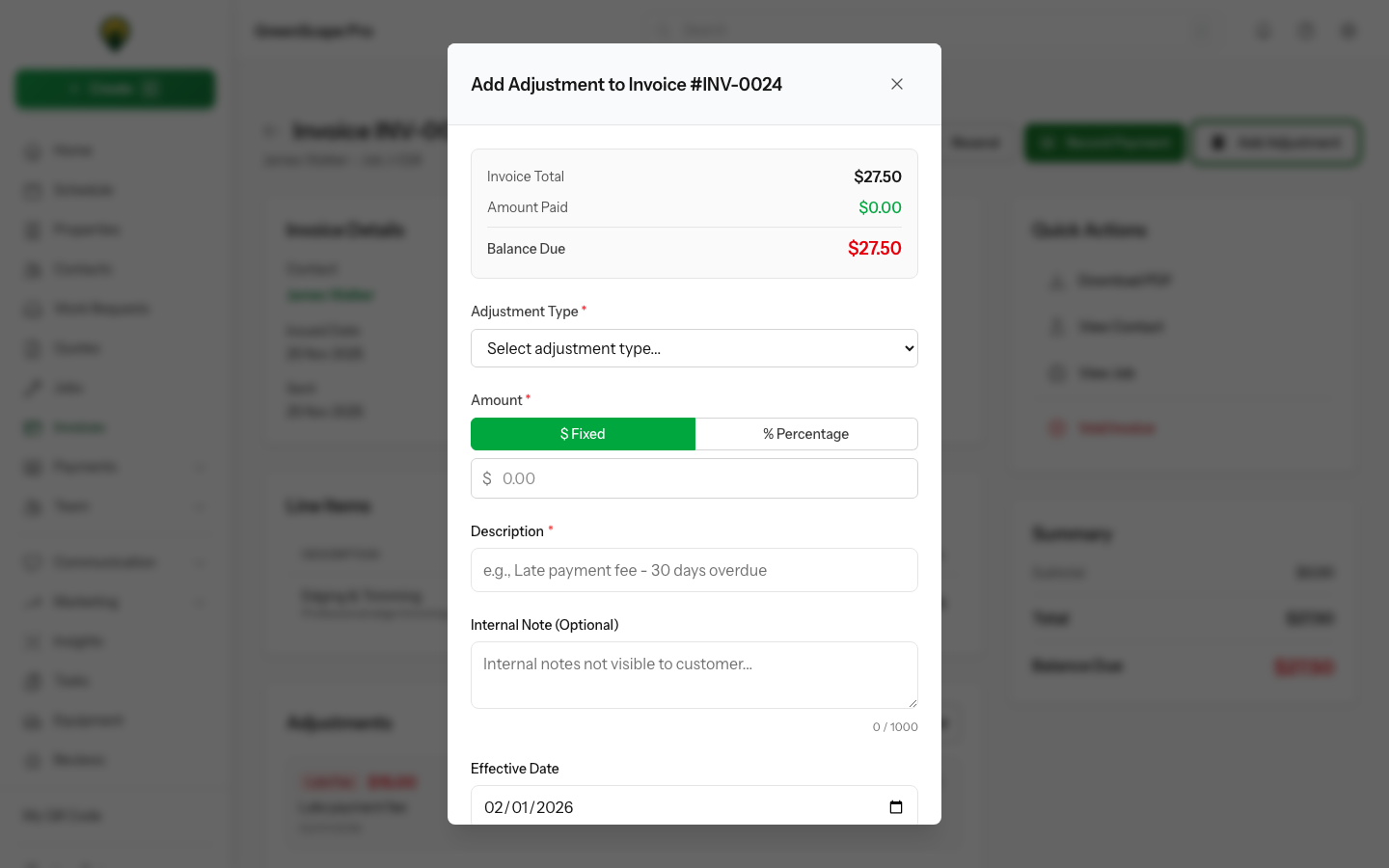
- Open the invoice you want to adjust
- Click More → Add Adjustment
- Select the adjustment type
- Enter the amount
- Add a description (visible to customer)
- Optionally add an internal note (staff only)
- Click Save
The invoice total updates immediately.
Click to enlarge
Amount Rules
Adjustments automatically enforce the correct sign:
- Credits, discounts, write-offs — Amount must be negative (reduces balance)
- Late fees, interest — Amount must be positive (increases balance)
- Other — You choose the sign
Amount Limits
Credits and discounts cannot exceed the remaining balance. If an invoice has $100 remaining, you cannot add a -$150 credit.
Which Invoices Can Be Adjusted
Adjustments can only be added to invoices with these statuses:
| Status | Can Adjust? |
|---|---|
| Draft | No — edit line items instead |
| Sent | Yes |
| Viewed | Yes (treated as Sent) |
| Overdue | Yes |
| Partially Paid | Yes |
| Paid | No — balance is already zero |
| Void | No — invoice is cancelled |
Viewing Adjustments
Adjustments appear on the invoice in the Adjustments section:
- Description — What you entered (customer sees this)
- Amount — The adjustment value
- Date — Effective date of adjustment
- Added by — Staff member who created it
In Activity Log, you can see the full history including internal notes.
Deleting Adjustments
You can delete an adjustment only if:
- No payments have been received on the invoice
- You have admin or owner permissions
After any payment is received, adjustments are locked to maintain accounting integrity. If you need to undo an adjustment on a partially paid invoice, add a reverse adjustment instead.
To Delete
- Open the invoice
- Find the adjustment in the Adjustments section
- Click the Delete icon
- Confirm deletion
The invoice balance recalculates automatically.
Write-offs
Use write-offs to clear small or uncollectable balances:
- Add an adjustment with type Write-off
- Set amount to the negative of the remaining balance
- Add description like "Written off - uncollectable"
- Add internal note with reason (for your records)
When a write-off clears the entire balance, the invoice status changes to Paid.
Late Fees
To add a late fee:
- Open the overdue invoice
- Add adjustment with type Late Fee
- Enter the fee amount (positive number)
- Add description like "Late payment fee - 30 days overdue"
Accounting Integration
When synced to Xero or your accounting system:
- Credits/discounts appear as separate line items or credit notes
- Late fees/interest appear as additional charges
- Write-offs may sync to a bad debt expense account
Check your Xero integration settings to configure how adjustments are handled.
Customer Visibility
| What Customer Sees | What Customer Doesn't See |
|---|---|
| Adjustment description | Internal notes |
| Amount | Who added it |
| Effective date | Timestamps |
Keep descriptions professional — customers see them on invoices and payment pages.
Common Workflows
Settling for Less
Customer offers to pay $900 on a $1,000 invoice:
- Add Discount adjustment: -$100
- Description: "Settlement discount"
- Accept the $900 payment
Small Balance Clearance
Invoice has $0.23 remaining due to rounding:
- Add Write-off adjustment: -$0.23
- Description: "Balance cleared"
- Invoice marks as Paid
Adding Overdue Penalty
Invoice is 60 days overdue:
- Add Late Fee adjustment: $50
- Description: "Late payment fee - 60 days"
- New balance includes the fee
Permissions
| Role | Add Adjustment | Delete Adjustment | View |
|---|---|---|---|
| Owner | Yes | Yes | Yes |
| Admin | Yes | Yes | Yes |
| Office | Yes | No | Yes |
| Field | No | No | No |