
Appearance
Work Requests
Capture customer enquiries from your website directly into YardPilot.
What Are Work Requests?
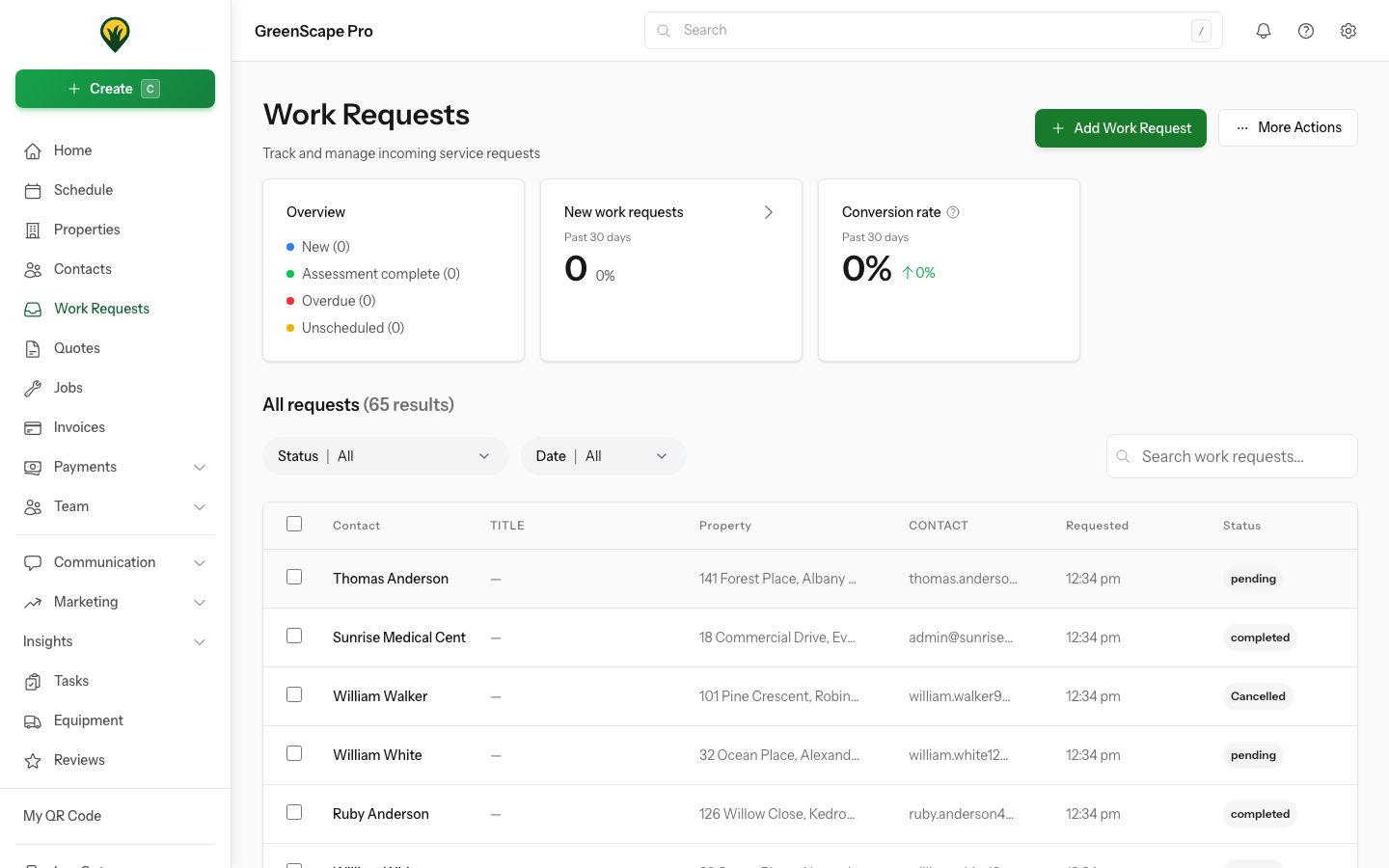
Work requests are customer enquiries that come from external sources - typically your website's contact form. Instead of receiving emails that you manually enter into YardPilot, the integration sends them directly to your dashboard.
Click to enlarge
Before You Start
You'll need:
- An API key from YardPilot
- Access to your website's code (or a web developer)
- A contact form on your website
How It Works
When a customer submits your contact form:
- Form data is sent to
https://app.yardpilot.io/api/v1/integration/work-requests - YardPilot creates a new service request
- If it's a new customer, a contact is created automatically
- The request appears in Work Requests
- You can convert it to a quote or job
What Information Is Captured
Required Fields
| Field | Description |
|---|---|
| Name | Customer's full name |
| Customer's email address | |
| Phone | Customer's phone number |
| Message | Description of what they need (10+ characters) |
Optional Fields
| Field | Description |
|---|---|
| Service Type | Type of service requested |
| Preferred Contact | Email, phone, or SMS |
| Address | Property street address |
| City | Suburb/city |
| State | QLD, NSW, VIC, etc. |
| Postcode | 4-digit Australian postcode |
Setting Up Your Contact Form
For Web Developers
Share these details with your developer:
Endpoint: POST https://app.yardpilot.io/api/v1/integration/work-requests
Headers:
Content-Type: application/json
X-Company-Key: your_api_key_here
Example Request Body:
json
{
  "customer_name": "Sarah Johnson",
  "customer_email": "sarah@example.com",
  "customer_phone": "0412 345 678",
  "message": "I need lawn mowing for my property. Looking for fortnightly service.",
  "street_line_1": "42 Oxford Street",
  "city": "Bulimba",
  "state": "QLD",
  "postcode": "4171"
}
Success Response (201):
json
{
  "message": "Request received successfully",
  "work_request_id": "01JCQR8X9PQZW3Y5K7N4M6B2T8"
}
Developer Documentation
For complete technical details including code examples in JavaScript, PHP, and Python, see our Integration API Developer Guide.
Common Form Builders
If you use a form builder like Gravity Forms, JotForm, or Typeform, you can often configure it to send data to a webhook URL. Your developer can set up a small backend script that receives the form data and forwards it to YardPilot.
Receiving Requests in YardPilot
Viewing New Requests
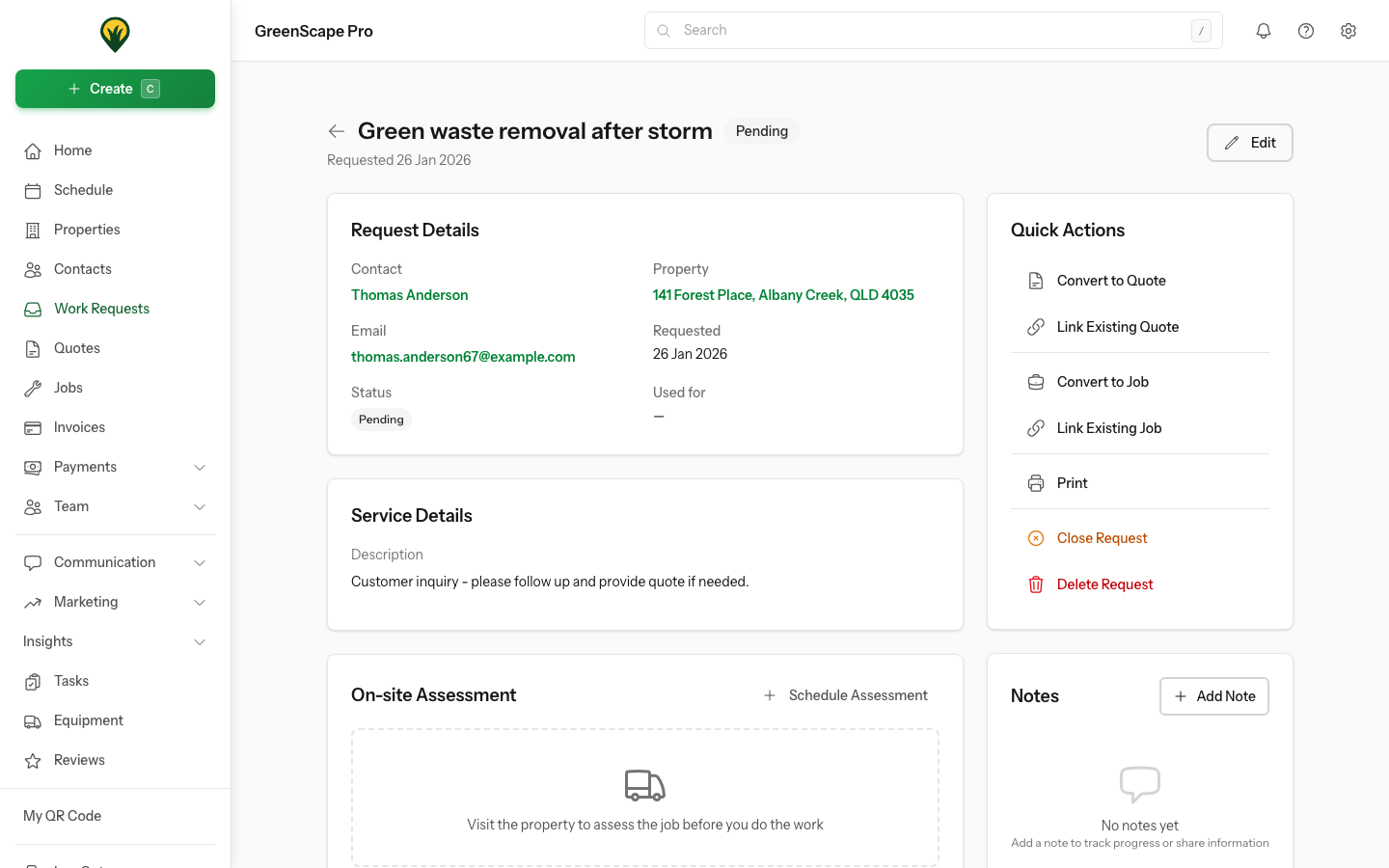
- Go to Work Requests
- New requests appear with status New
- Click a request to view details
Click to enlarge
Converting to a Quote
- Open the request
- Click Create Quote
- Add line items and pricing
- Send to the customer
Converting to a Job
- Open the request
- Click Create Job
- Schedule visits
- Assign to crew
Linking to Existing Quotes or Jobs
Sometimes a work request relates to work you've already quoted or scheduled. Instead of creating duplicates:
Link to an existing quote:
- Open the work request
- Click Link Existing Quote
- Search for quotes from the same contact
- Select the matching quote
- Confirm the link
Link to an existing job:
- Open the work request
- Click Link Existing Job
- Search for jobs from the same contact
- Select the matching job
- Confirm the link
Once linked, the work request status updates to Converted to Quote or Converted to Job, and you can navigate directly to the linked item.
Closing Work Requests
Not every enquiry becomes work. You can close requests that won't proceed:
- Open the work request
- Click Close Request
- Select an outcome:
| Outcome | When to Use |
|---|---|
| Declined | Customer declined your quote or proposal |
| Cancelled | Customer cancelled before you could respond |
| Not Required | Work is no longer needed |
| Duplicate | Same request submitted multiple times |
- Optionally add a reason for context
- Confirm the closure
Closed requests show their outcome and reason in the detail view, helping you track why leads didn't convert.
Terminal States
Once a work request is closed or converted, most quick actions are hidden. You can still view the details and print the request.
Image Attachments
Customers can attach photos to their requests (up to 10 images). This is useful for:
- Showing the current state of their lawn/property
- Highlighting problem areas
- Providing access photos (gates, parking)
Your developer can implement image uploads using the upload token provided in the work request response. See our developer documentation for details.
Automatic Features
Contact Creation
When a request comes in from a new email address, YardPilot automatically:
- Creates a new contact in your CRM
- Sets their status to "Lead"
- Stores their name, email, and phone
If the email already exists, the request is linked to the existing contact.
Property Creation
If an address is included, YardPilot:
- Creates a property record
- Links it to the contact
- Makes it available for future quotes and jobs
Spam Filtering
YardPilot automatically filters spam submissions so your dashboard stays clean. Spam is detected using:
- Known spam email domains
- Suspicious content patterns
- Excessive links in messages
Duplicate Detection
If someone accidentally submits the same form twice within 5 minutes, YardPilot recognises it as a duplicate and doesn't create a second request.
Troubleshooting
Requests Not Appearing
- Check API key - Ensure you're using a live key (not test)
- Check for errors - Your developer can check the API response
- Blocked by spam filter - Request may have been rejected as spam; contact support if legitimate requests aren't appearing
Wrong Data Coming Through
- Field mapping - Ensure form fields map to the correct API fields
- Required fields - Name, email, and message are required
- Field formats - State must be 3 letters, postcode must be 4 digits
Duplicate Requests Being Created
This shouldn't happen with the built-in duplicate detection. If it is:
- Check if submissions are more than 5 minutes apart
- Check if the message content is slightly different
- Ensure the same email address is used
Testing Your Integration
Use test keys to verify your integration before going live.
How Test Keys Work
When you submit requests using a test key (ypk_test_...):
- Requests are validated exactly like live requests
- Work requests, contacts, and properties are created with a TEST badge
- Test data is hidden by default from all lists
- No notifications are sent to your team
- All test records are automatically deleted after 24 hours
Viewing Test Requests
To see test submissions in YardPilot:
- Go to Work Requests
- Enable the Show test requests filter
- Test requests appear with a TEST badge
This lets you verify the data came through correctly without polluting your real work requests.
Testing Workflow
- Generate a test API key in Settings → API Keys
- Configure your form to use the test key
- Submit test enquiries through your form
- Check Work Requests (with test filter enabled) to verify data
- Switch to your live API key when ready to go live
Don't Forget to Switch Keys
If you accidentally leave a test key in production, customer requests will be marked as test data and automatically deleted after 24 hours. Your team won't see them or receive notifications. Always verify you're using a live key (ypk_live_...) before launching.
Next Steps
- Create quotes via API - Build quote calculators
- Creating Quotes - Handle incoming requests