
Appearance
Team Management
Add team members, assign roles, and control exactly what each person can access in YardPilot.
Overview
YardPilot uses a permission-based access control system with four built-in roles:
| Role | Access Level | Best For |
|---|---|---|
| Owner | Full access to everything | Business owners |
| Admin | Full access except role management | Senior managers |
| Office | CRM, quoting, invoicing, scheduling, cancel/pause jobs | Admin staff, schedulers |
| Field | Visits, on-site lead capture, own time and tasks | Technicians, field staff |
Need more granular control? You can create custom roles with any combination of permissions.
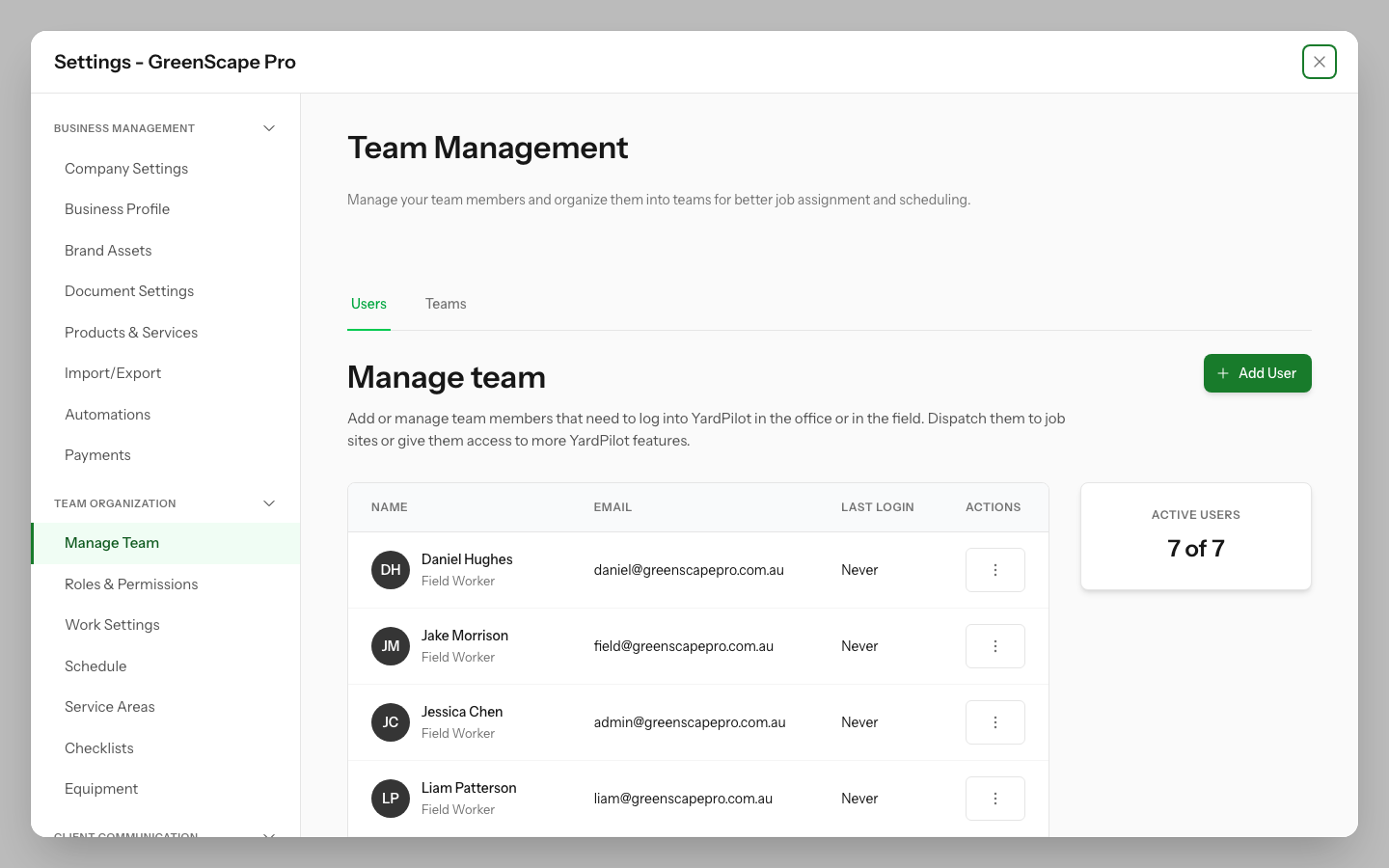
Click to enlarge
In This Section
Getting Started
- Adding Team Members — Invite your team to YardPilot
Access Control
- Roles & Permissions — Understand how access control works
- Creating Custom Roles — Build tailored roles for your business
- Permission Reference — Complete list of all permissions
Time & Attendance
- Time Tracking — Track hours worked by your team
- Leave — Request and approve time off
Quick Actions
Invite a Team Member
- Go to Settings → Manage Team
- Click + Invite Member
- Enter their email and select a role
- Click Send Invitation
Change Someone's Role
- Go to Settings → Manage Team
- Click on the team member
- Select a new role
- Click Save
Create a Custom Role
- Go to Settings > Roles & Permissions
- Click + Create Role
- Name your role and configure permissions
- Assign team members to the role