
Appearance
Contacts
Contacts are your customers in YardPilot. Store their information, track their properties, view job history, and manage communication—all from one place.
Contact Overview
Each contact record stores:
- Basic Information - Name, email, phone number
- Properties - Service addresses linked to the contact
- Jobs & Visits - Work history
- Quotes & Invoices - Financial history
- Notes - Internal information and communication log
- Billing Defaults - Automatic discounts and payment terms
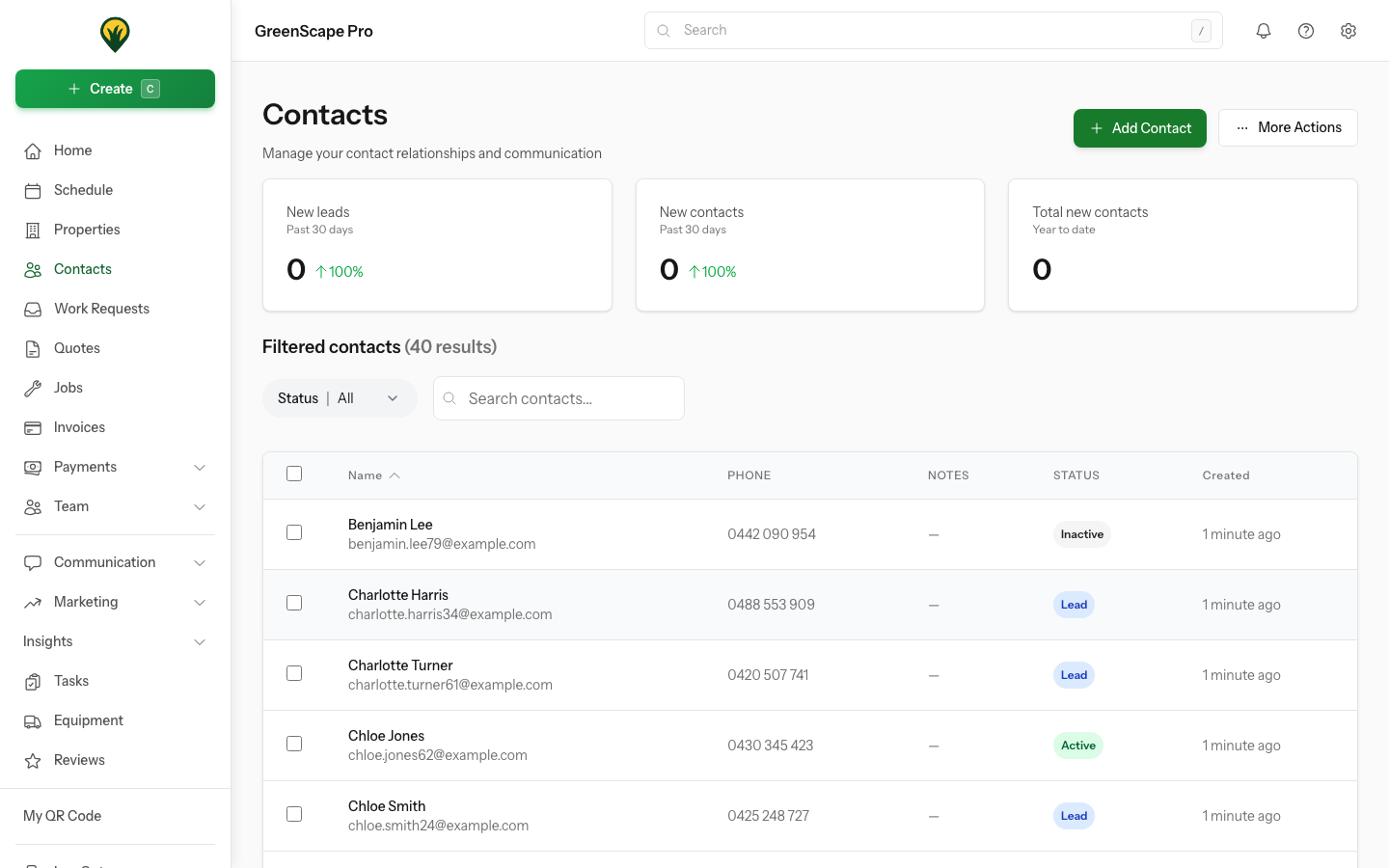
Click to enlarge
Adding Contacts
Creating a New Contact
- Go to Contacts in the sidebar
- Click Add Contact
- Fill in the contact details:
- First and last name
- Email address
- Phone number(s)
- Company name (optional)
- Click Save
From a Work Request
When you receive a work request from a new customer, YardPilot automatically creates a contact for them.
From a Quote
Create contacts on-the-fly when creating quotes for new prospects.
Contact Details
Basic Information
| Field | Description |
|---|---|
| First Name | Customer's first name |
| Last Name | Customer's last name |
| Primary email for invoices and communication | |
| Phone | Main contact number |
| Mobile | Mobile number for SMS |
| Company | Business name (for commercial clients) |
Properties
Each contact can have multiple service properties:
- Home address
- Investment properties
- Commercial locations
- Holiday homes
See Properties for more details.
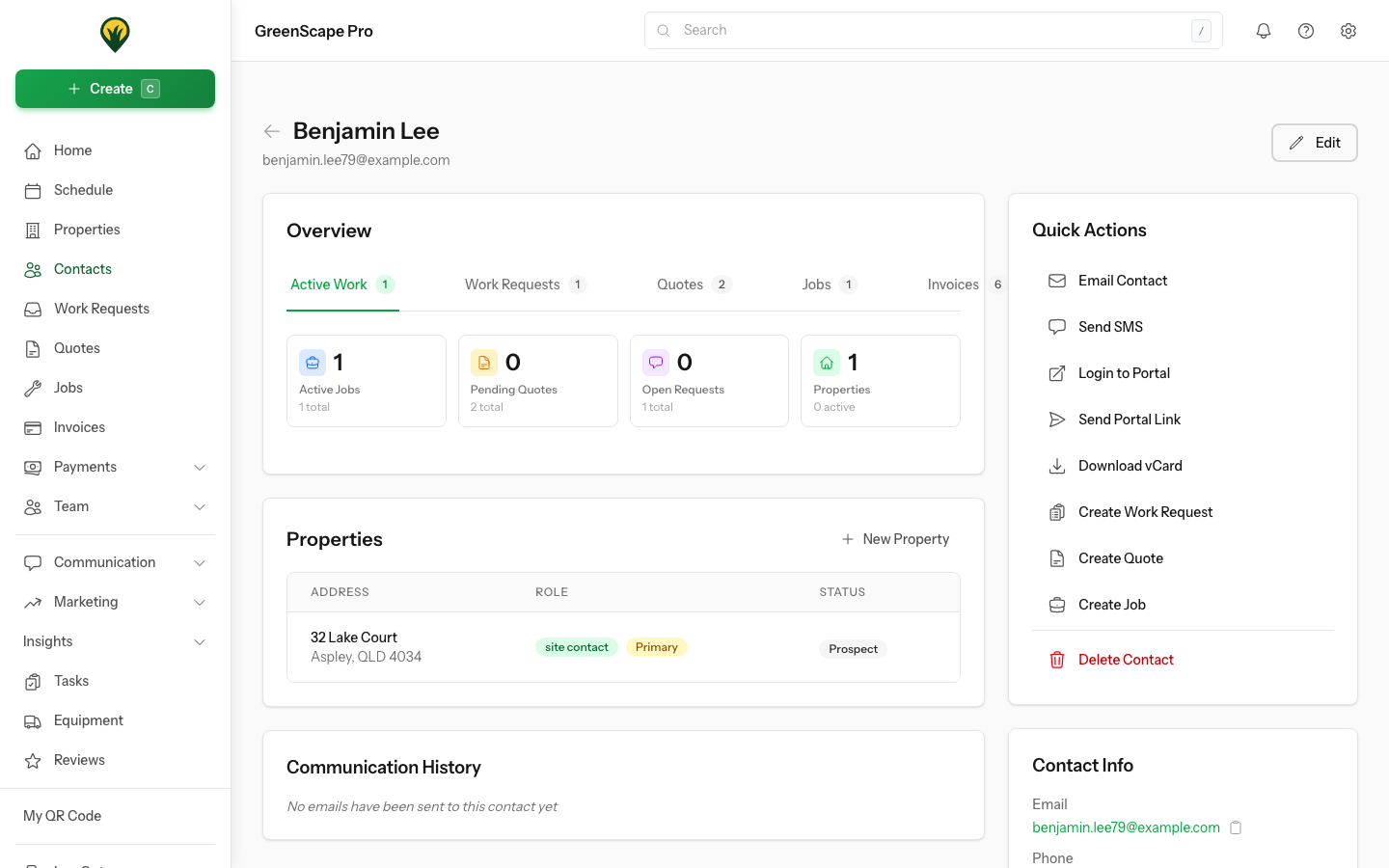
Click to enlarge
Billing Defaults
Set automatic billing preferences for individual contacts. When you create an invoice for a contact with billing defaults, these settings are applied automatically.
Setting Up Billing Defaults
- Open the contact's profile
- Click Edit
- Scroll to Billing Defaults
- Configure your preferences
- Click Save
Default Discount
Apply automatic discounts for loyal customers or special arrangements:
Percentage Discount
- Enter a percentage (e.g., 10%)
- Applied to the invoice subtotal
- Good for: Loyalty programs, bulk deals
Fixed Amount Discount
- Enter a dollar amount (e.g., $50)
- Deducted from the invoice total
- Good for: Negotiated price reductions, credit arrangements
Default Payment Terms
Set when payment is due for this contact:
| Terms | Description |
|---|---|
| Due on Receipt | Payment expected immediately |
| 7 days | Net 7 - Due within 7 days |
| 14 days | Net 14 - Due within 14 days |
| 30 days | Net 30 - Due within 30 days |
| 60 days | Net 60 - Due within 60 days |
Commercial Clients
Larger commercial clients often expect 30-day payment terms. Setting this as their default saves time on every invoice.
How Billing Defaults Work
When you create an invoice for a contact with billing defaults:
- YardPilot detects the contact has defaults set
- A banner shows what defaults will be applied
- The discount and payment terms are pre-filled
- You can override these values if needed
The banner displays:
Contact Billing Defaults Applied This contact has default billing settings that will be applied to this invoice:
- 10% discount
- 30 days payment terms
You can override these values in the form above.
Use Cases for Billing Defaults
Loyalty Discounts Reward long-term customers with automatic percentage discounts on every invoice.
Commercial Accounts Set up 30-day terms for business clients who process invoices through accounts payable.
Property Managers Apply standard discounts for property management companies who provide volume work.
Prepaid Arrangements For customers who pay upfront, set payment terms to "Due on Receipt".
Negotiated Rates Honour agreed-upon discounts without remembering to apply them manually.
Contact History
Jobs & Visits
View all work performed for a contact:
- Past visits with dates and status
- Upcoming scheduled visits
- Job totals and history
Financial History
Track all financial interactions:
- Quotes sent and their status
- Invoices and payment status
- Total revenue from the contact
- Outstanding balance
Communication Log
See all communication with the contact:
- Emails sent
- SMS messages
- Notes added by team members
Contact Tags
Organise contacts with tags:
- VIP - High-value customers needing priority service
- Commercial - Business clients
- Residential - Home customers
- Inactive - Customers who haven't used services recently
Creating Tags
- Open a contact
- Click Add Tag
- Select existing or create new
- Save
Filtering by Tags
Use tags to filter your contact list:
- Go to Contacts
- Click the Filter button
- Select one or more tags
- View filtered results
Merging Contacts
If you have duplicate contacts:
- Open the contact you want to keep
- Click the menu (⋮) → Merge Contact
- Search for the duplicate contact
- Review what will be merged
- Confirm the merge
WARNING
Merging is permanent. All jobs, invoices, and history from the duplicate will move to the primary contact.
Archiving Contacts
For customers you no longer service:
- Open the contact
- Click the menu (⋮) → Archive
- Confirm
Archived contacts:
- Don't appear in active lists
- Keep their full history
- Can be restored later
Permissions
| Role | View | Create/Edit | Delete | Billing Defaults |
|---|---|---|---|---|
| Owner | ✓ | ✓ | ✓ | ✓ |
| Admin | ✓ | ✓ | ✓ | ✓ |
| Office | ✓ | ✓ | ✗ | ✓ |
| Field | ✓* | ✗ | ✗ | ✗ |
*Field workers see contacts for their assigned jobs only.
Best Practices
Keep Information Current
- Update phone numbers when customers change them
- Add new email addresses
- Mark old emails as secondary
Use Notes
Add notes for:
- Gate codes and access instructions
- Customer preferences
- Special requirements
- Communication summaries
Regular Cleanup
Periodically:
- Archive inactive customers
- Merge duplicates
- Update outdated information
- Review billing defaults
Next Steps
- Add properties to your contacts
- Create a quote for a contact
- Send an invoice with billing defaults
- Set up automations for customer communication