
Appearance
Jobs & Scheduling
Jobs represent the work you've committed to do for clients. Each job can have one or more scheduled visits.
Overview
Job → Schedule Visits → Assign Crew → Complete Work → InvoiceJob vs Visit
| Concept | Description |
|---|---|
| Job | The overall work agreement with a client |
| Visit | A specific scheduled time to do the work |
A job can have:
- One visit - For simple, one-time work
- Multiple visits - For larger projects done over several days
- Recurring visits - For ongoing maintenance contracts
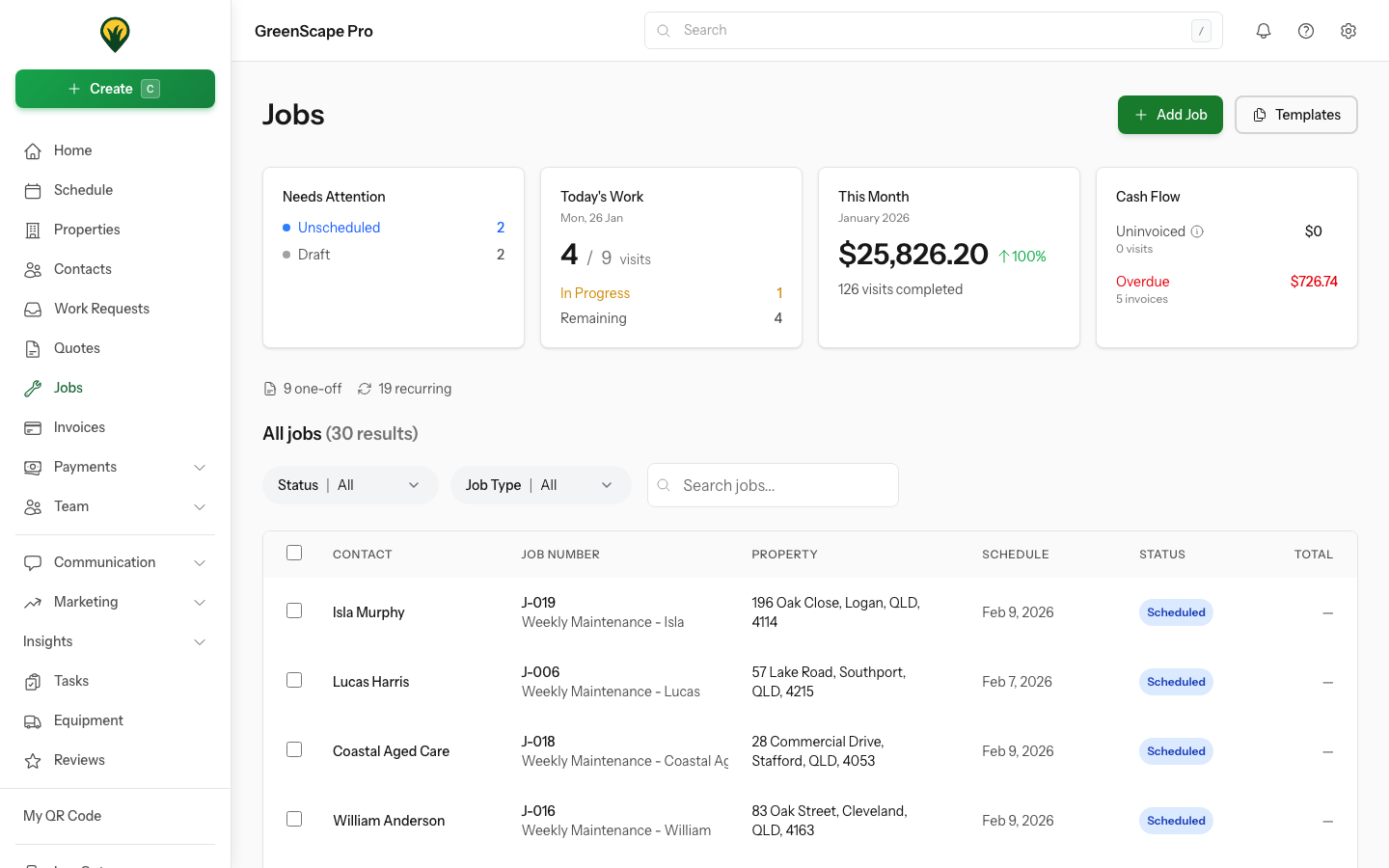
Click to enlarge
Job Statuses
| Status | Meaning |
|---|---|
| Active | Job is in progress with upcoming or scheduled visits |
| Paused | Temporarily stopped, can be resumed when ready |
| Completed | All work finished, ready for invoicing |
| Cancelled | Job cancelled, no further work |
Video Descriptions
Attach video explanations to jobs to improve customer communication and team clarity.
Adding Videos
Open a job
Scroll to the Videos section (below line items)
Choose how to add:
- Upload - Upload a video file (up to 2GB)
- Link - Paste a YouTube or Vimeo URL
Add an optional caption
Toggle Visible to customer if the video should appear in the client portal
Video Types
| Source | Supported |
|---|---|
| File upload | MP4, MOV, WebM (up to 2GB) |
| YouTube | Public and unlisted videos |
| Vimeo | Public and unlisted videos |
Customer Visibility
Control which videos customers can see:
- Visible to customer: On - Video appears on the client portal appointment page
- Visible to customer: Off - Video is internal only (for your team)
This is useful for:
- Sending walkthrough videos to customers explaining the work
- Keeping internal training or documentation videos private
Video Limits
The maximum number of videos per job can be configured in Settings → Jobs. The feature can also be disabled entirely if not needed.
Managing Jobs
Deleting Jobs
To delete a single job:
- Open the job
- Click Delete Job from the actions menu
- Confirm deletion
To delete multiple jobs at once:
- Go to the Jobs list
- Select jobs using the checkboxes
- Click the Delete button in the toolbar
- Confirm deletion
Deletion Rules
You cannot delete jobs that:
- Are currently In Progress or Closed
- Have visits that are In Progress
Complete or cancel the visits first, then delete the job.
What Happens When You Delete
- The job and all its visits are soft-deleted
- Linked invoices remain (they reference the deleted job)
- Activity logs are preserved for audit purposes
- Deleted jobs can be viewed by support if needed
In This Section
- Creating Jobs - Set up new jobs
- Scheduling Visits - Plan when work happens
- Assigning Crews - Allocate team members
- Visit Completion - Recording completed work
- Pausing Jobs - Temporarily pause and resume recurring jobs
- Cancelling Jobs - Cancel jobs and handle scheduled visits